
Home screen
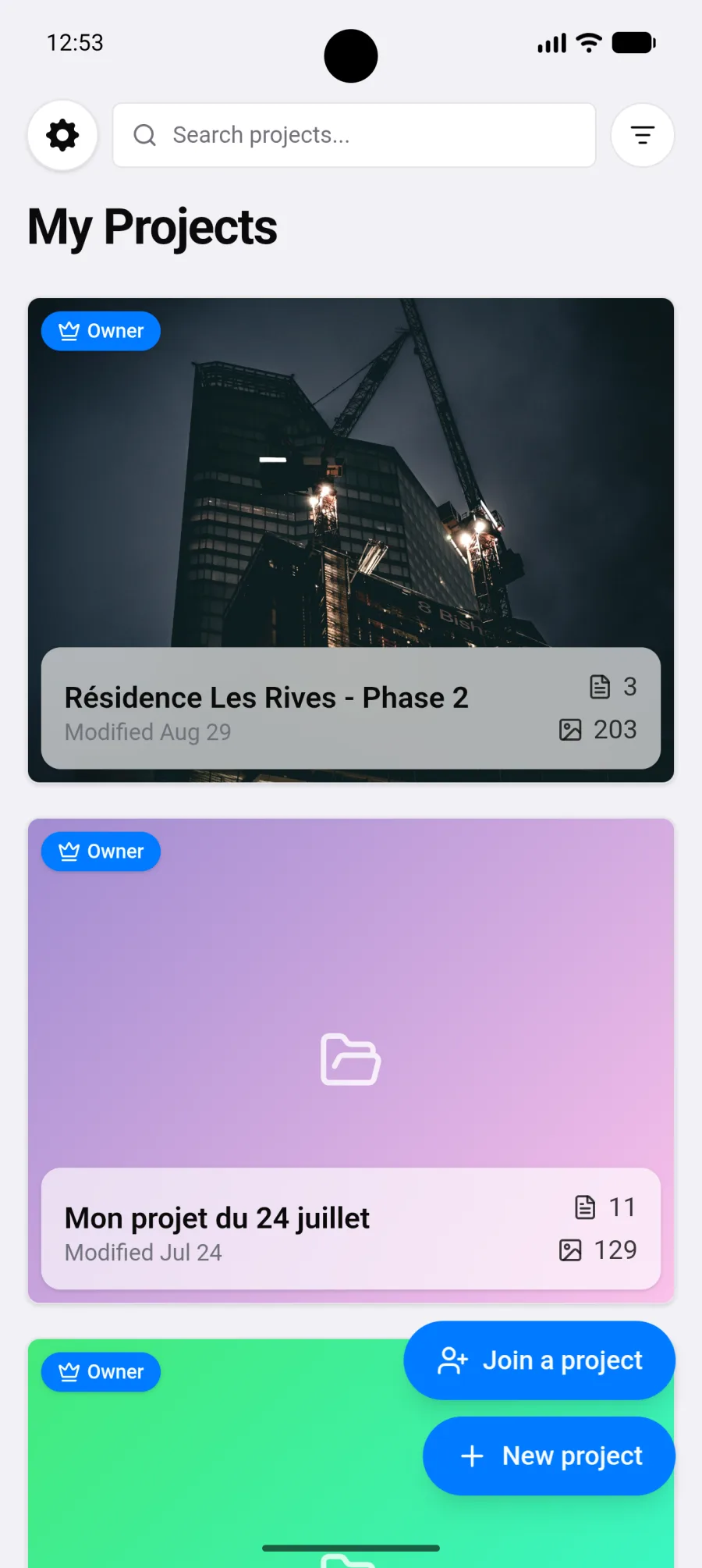
The PhotoReport home screen on Android is your project list. Everything starts there.
On first launch
Section titled “On first launch”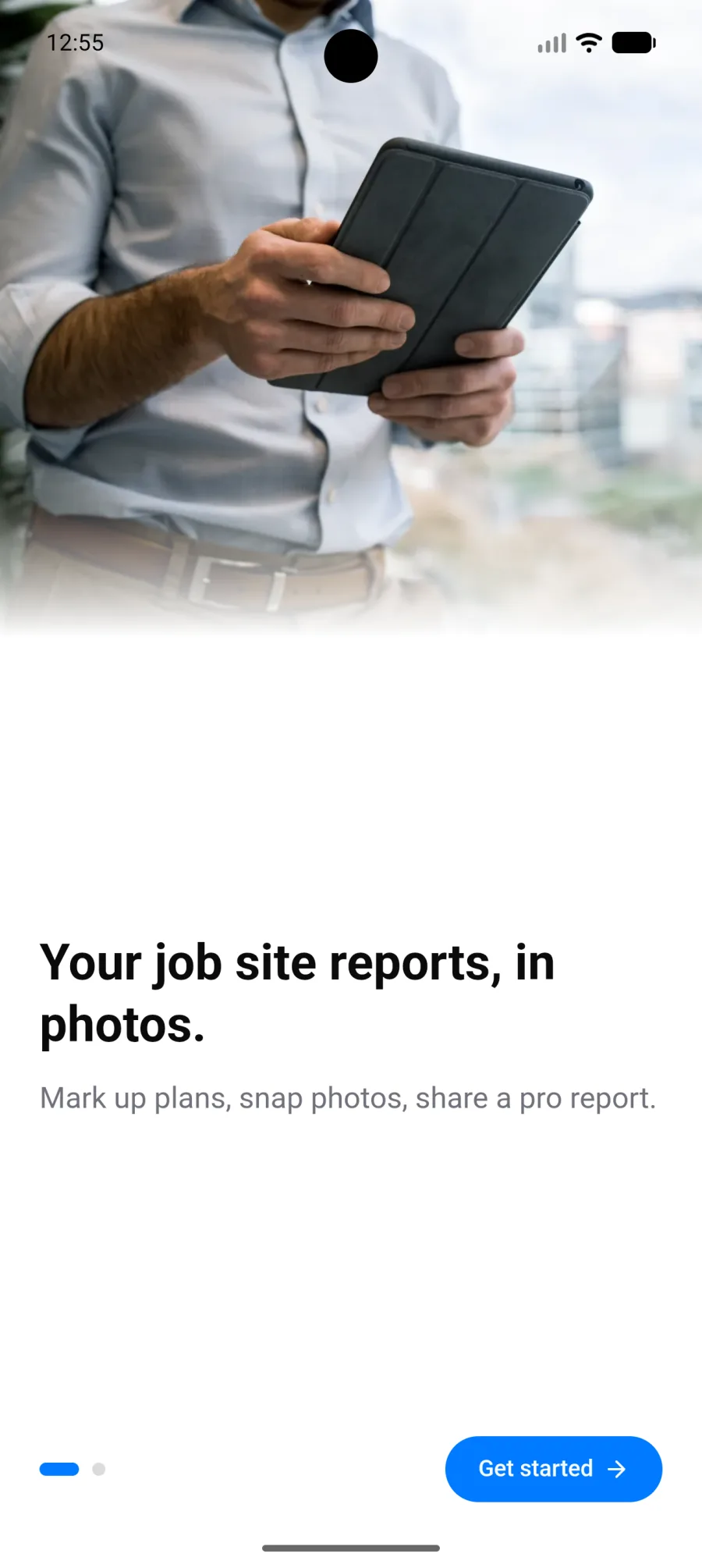
The app introduces PhotoReport in a few screens, then offers to create an account or continue without one. See Account and sign-in.
You then land on an empty home screen offering two paths:
- Create my first project, if you already know what you want to document.
- Try a sample project, which creates a project already filled with a plan, viewpoints and a general observation. It is the fastest way to see what a finished project looks like.
The sample project can be explored, edited and deleted freely. You can only create one.
The project list
Section titled “The project list”Once you have projects, the screen shows their cards, each with:
- The cover photo. A project without one shows the photo of its first general observation, or a gradient if it has none either.
- The project name.
- The number of plans (hidden when there are none) and photos.
- The last modified date.
- A badge showing whether you are the owner or a collaborator.
- A ⋮ button (More actions): Open, Project Settings, and Delete if you own the project or Leave project if it was shared with you. Pressing and holding the card opens the same menu.
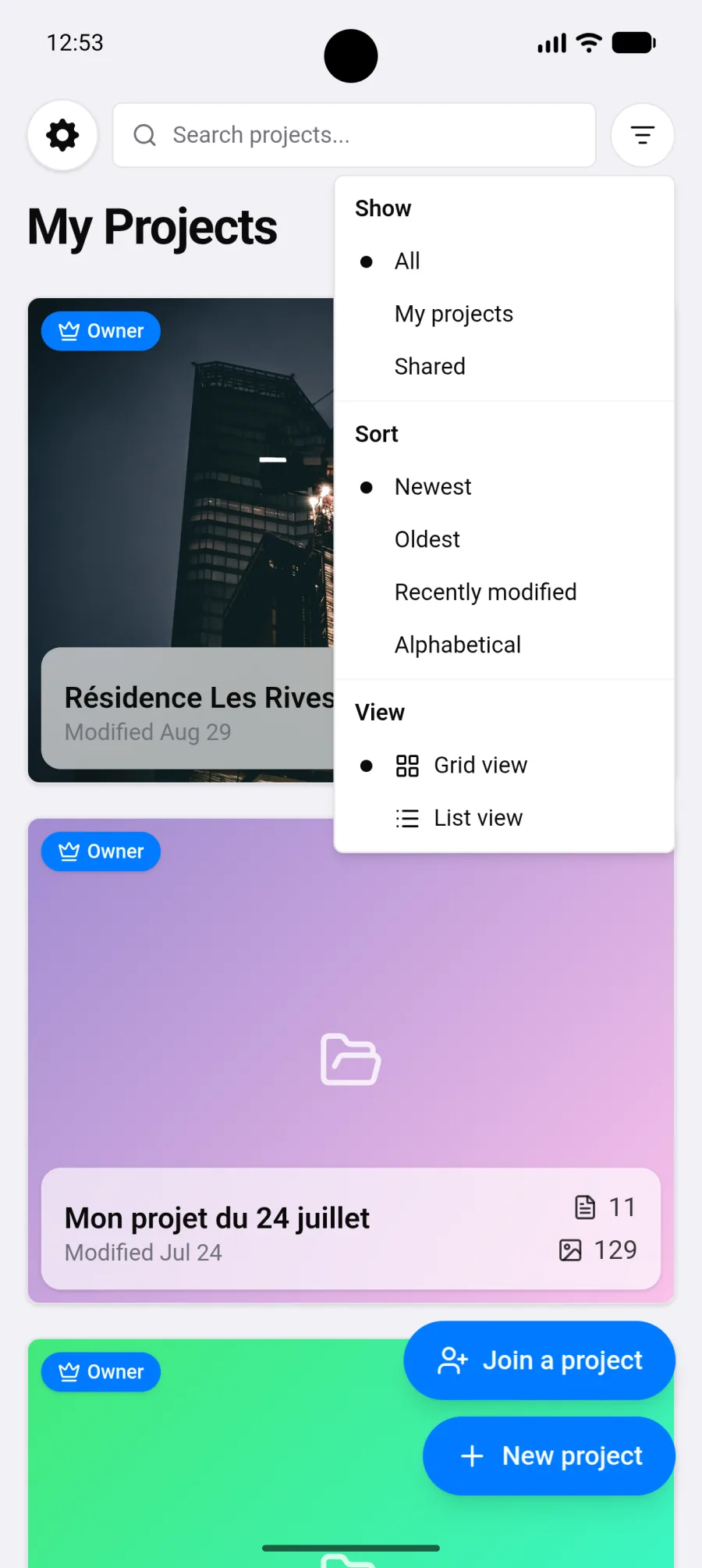
To find a project: search, the All / My projects / Shared filter, and sorting by date or alphabetically. You can also switch between grid and list view.
Deleted projects
Section titled “Deleted projects”A deleted project is not gone straight away. An Undo bar stays on screen for 8 seconds, then the project waits in Settings > Recently deleted for 7 days, where its owner can restore it. See Settings and Projects.
Useful gestures
Section titled “Useful gestures”- Pull down to refresh the list.
- The phone’s back button moves up one level in the app rather than closing it.
Indicators worth knowing
Section titled “Indicators worth knowing”A few markers appear depending on the situation:
- A remaining reports counter if you are on the free plan, for example “Free plan · 2 reports left”.
- Coach marks, the first time, on the three actions that change everything: invite your team, brand your reports and create a report. Tap Got it to dismiss them.
- A pending sync note on anything that has not yet gone to the cloud. See Offline mode.
What next
Section titled “What next”Create a project, then import your first plan or start with general observations: a plan is optional. See Projects, Import a plan and Observations.