Settings
Settings open from the dashboard menu and come in nine sections. On a small screen, an index gathers them and each section opens on its own.
Account
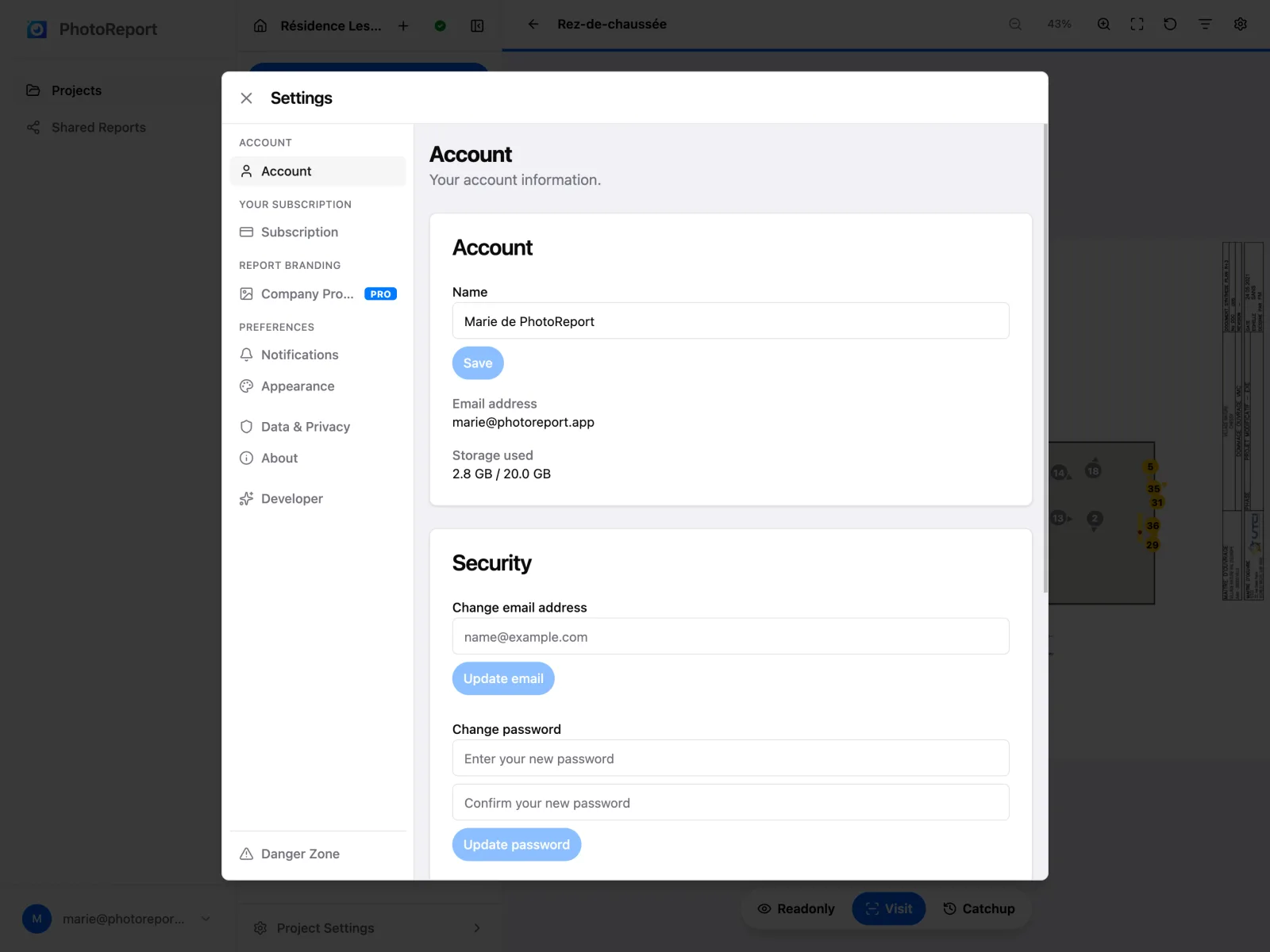
Section titled “Account”Your personal information:
- Your name, editable. It is the one shown next to the viewpoints you create and in a project’s member list.
- Your email address.
- Your storage used, against your plan’s quota.
PhotoReport warns you when you approach the limit, then when it is reached. You can keep uploading beyond it, but it is time to make room or change plan. See Storage.
Security
Section titled “Security”Still under Account, a Security block lets you:
- Change your email address: a confirmation message goes to the new address, and the change takes effect once the link is followed.
- Change your password: enter the new password then confirm it.
If you sign in with Google or Apple, changing the email address updates your address but you keep signing in through that provider. To use an email and password, add them from the sign-in methods.
This section also carries the Sign out button.
Subscription
Section titled “Subscription”Your current plan, its renewal date and the detail of what it includes.
Paying directly from the browser is not open yet. Two routes depending on your situation:
- You already subscribed on iOS or Google Play: a button sends you to the store concerned, the only place the subscription can be changed or cancelled.
- You are starting from the free plan: Contact us to subscribe sends us your request. We activate the account and send the invoice within 24 hours, which suits a company subscription well.
Company profile
Section titled “Company profile”Your logo and contact details on exported reports. See Company profile.
Notifications
Section titled “Notifications”One switch per project. Muting a project stops its notifications without touching the others, and Mute all or Unmute all apply in one go.
The setting covers all your platforms at once: it governs push notifications on mobile as well as emails.
See Notifications.
Appearance
Section titled “Appearance”- Language: French, English, German, Spanish, Italian, Portuguese or Dutch.
- Theme: Light, Dark or System, which follows your device’s setting.
Both choices are remembered in your browser.
Recently deleted
Section titled “Recently deleted”Deleting something is no longer final. Right after a delete, a bar appears for 8 seconds (“Project deleted”, “Photo deleted”, and so on) with an Undo button. Only the last delete can be undone this way. After that, the item waits in Recently deleted for 7 days, then is removed for good.
There are two Recently deleted lists:
- Settings > Recently deleted lists the deleted projects you own. A deleted project no longer has project settings, so this is where it comes back from.
- Project settings > Recently deleted lists everything deleted inside that project: plans, viewpoints, observations, photos, videos and audio notes. The row shows how many items are waiting. See Project settings.
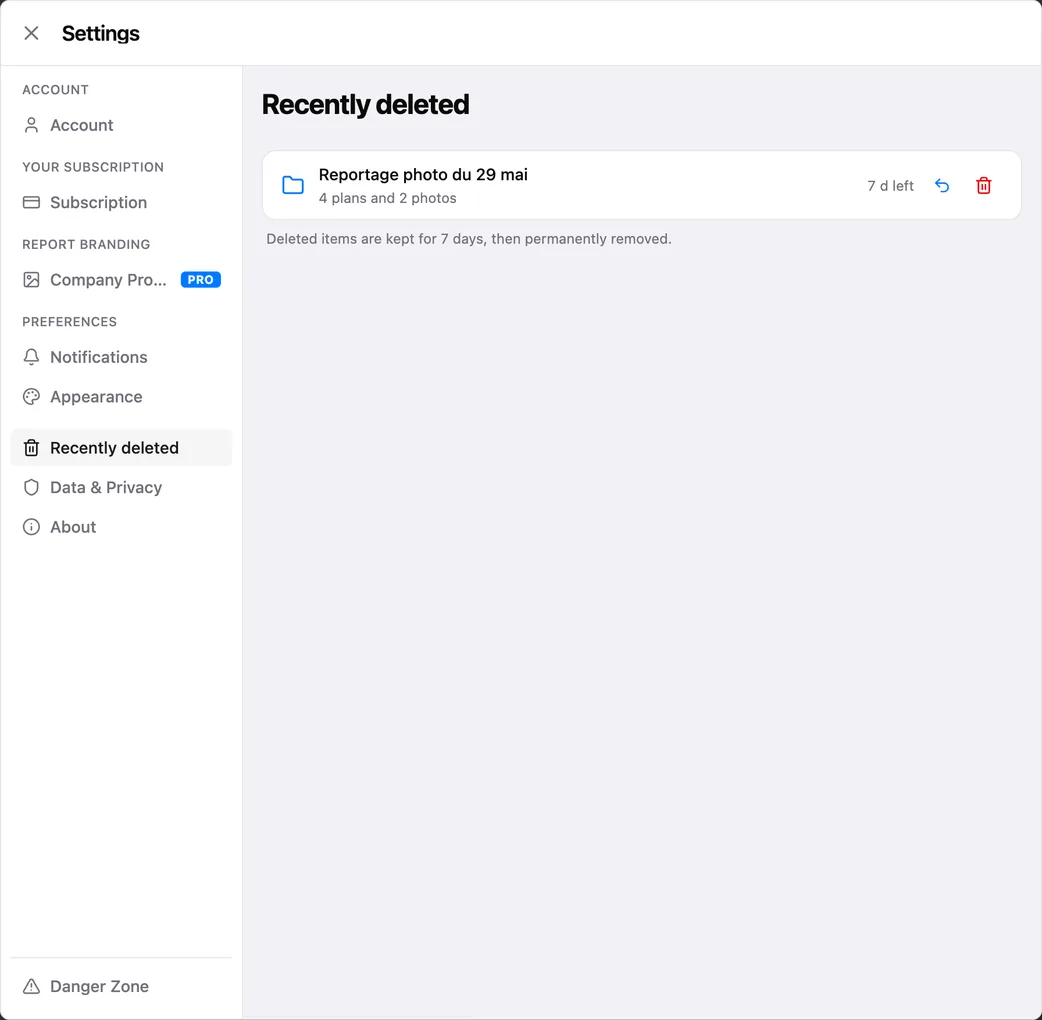
Each row shows the time left before it goes (for example “5 d left”) and two actions:
- Restore puts the item back where it was, with its original number. Nothing gets renumbered.
- Delete permanently asks for confirmation, then removes the item and its files for good, for everyone on the project. This cannot be undone.
If the item’s parent is deleted too, for example a viewpoint whose plan is also in the list, the row says “Restore [plan name] first.” Restore the plan, then the viewpoint.
Who can act:
- A deleted project can only be restored or permanently deleted by its owner. Collaborators do not delete a shared project, they leave it.
- Inside a project, every member sees the list, and any member can restore or permanently delete an item, whoever deleted it.
Deleting your account does not go through Recently deleted: see Danger zone.
Data and privacy
Section titled “Data and privacy”Links to the privacy policy and the terms of use, plus two tools.
Cookie preferences
Section titled “Cookie preferences”Reset my choice clears your current decision and shows the banner again, if you want to revisit your consent to audience statistics.
Export my data
Section titled “Export my data”- Click Export my data.
- Wait while the archive is prepared.
- Click Download file.
The file is JSON and gathers your personal data: profile, projects, reports and preferences. See Export my data.
Under Feedback:
- Send feedback opens a Write to us form. Type your message and click Send: it reaches our team directly, no mail app needed. You can tick Attach this device’s technical log (click View to see what it contains) to help us understand a problem. If the message cannot be sent, your text is kept and a Send by email instead link appears.
- Rate PhotoReport opens the App Store so you can leave a review.
Below, the app version and shortcuts to the help centre, the PhotoReport site and the App Store listing.
Danger zone
Section titled “Danger zone”- Click Delete my account.
- Enter your email address to confirm. It must match exactly.
- Click Delete permanently.
You are signed out automatically. See Delete my account for what is deleted and what is kept.