
Observations
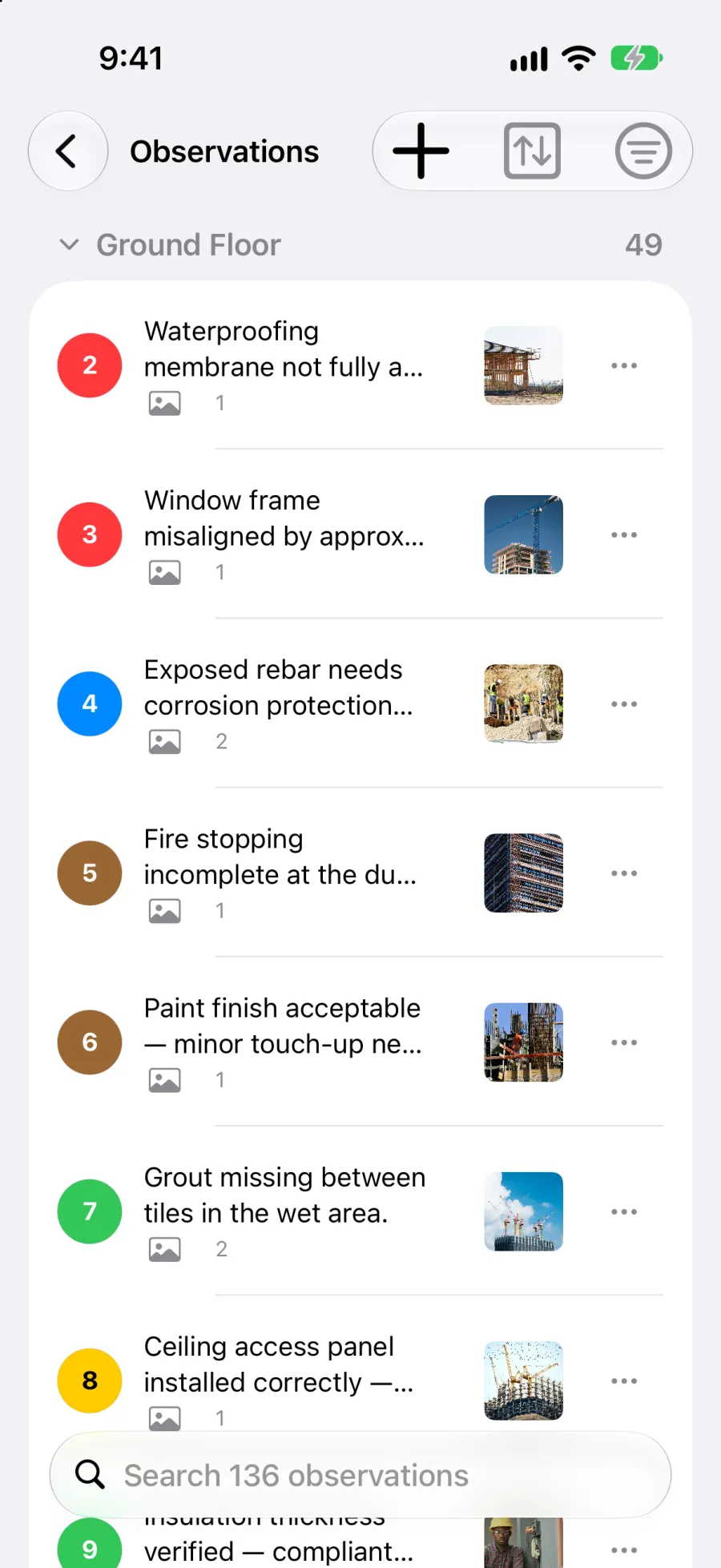
The Observations screen lists everything a project records, in one place: every viewpoint placed on every plan, and every general observation.
A general observation is an observation that is not placed on a plan. It is useful for findings about the site as a whole (a general waterproofing issue, site cleanliness, access), for cross-cutting issues, or for everything you photograph before you have the plans. It has a number, photos, videos, audio comments and a comment, exactly like a viewpoint. Only the position is missing.
Open the list
Section titled “Open the list”For the whole project:
- In the project sidebar, tap Observations. The row shows how many there are and sits above the plans. It appears as soon as the project holds at least one observation.
- On iPad, the same list is also an Observations card at the top of the project’s detail pane.
For one plan: open the plan and tap the list button in the plan toolbar (between + and the filter button). The list opens limited to that plan, with the filter you had on the drawing.
A chip with the plan’s name shows the list is limited to that plan. Tap its × to widen the list to the whole project, general observations included.
To go back to the drawing: on iPad, use the Drawing / List switch at the top; on iPhone, tap the back button, which carries the plan’s name.
How the list is organised
Section titled “How the list is organised”Observations are grouped into bands you can fold and unfold by tapping their heading. Each heading shows how many observations the band holds.
By default, the General Observations band comes first, then one band per plan. Tap a row to open the observation: comment, photos, videos, audio comments.
Search
Section titled “Search”The search field (Search 42 observations, with your project’s count) matches an observation’s number and the words in its comment. It ignores case and accents. It does not search plan names: to see one plan, open the list from that plan.
Group and sort
Section titled “Group and sort”The group and sort button offers two menus:
- Group by: Plan (the default), Colour, Day or Created by.
- Sort by: Number, Newest first or Oldest first.
Check before you export
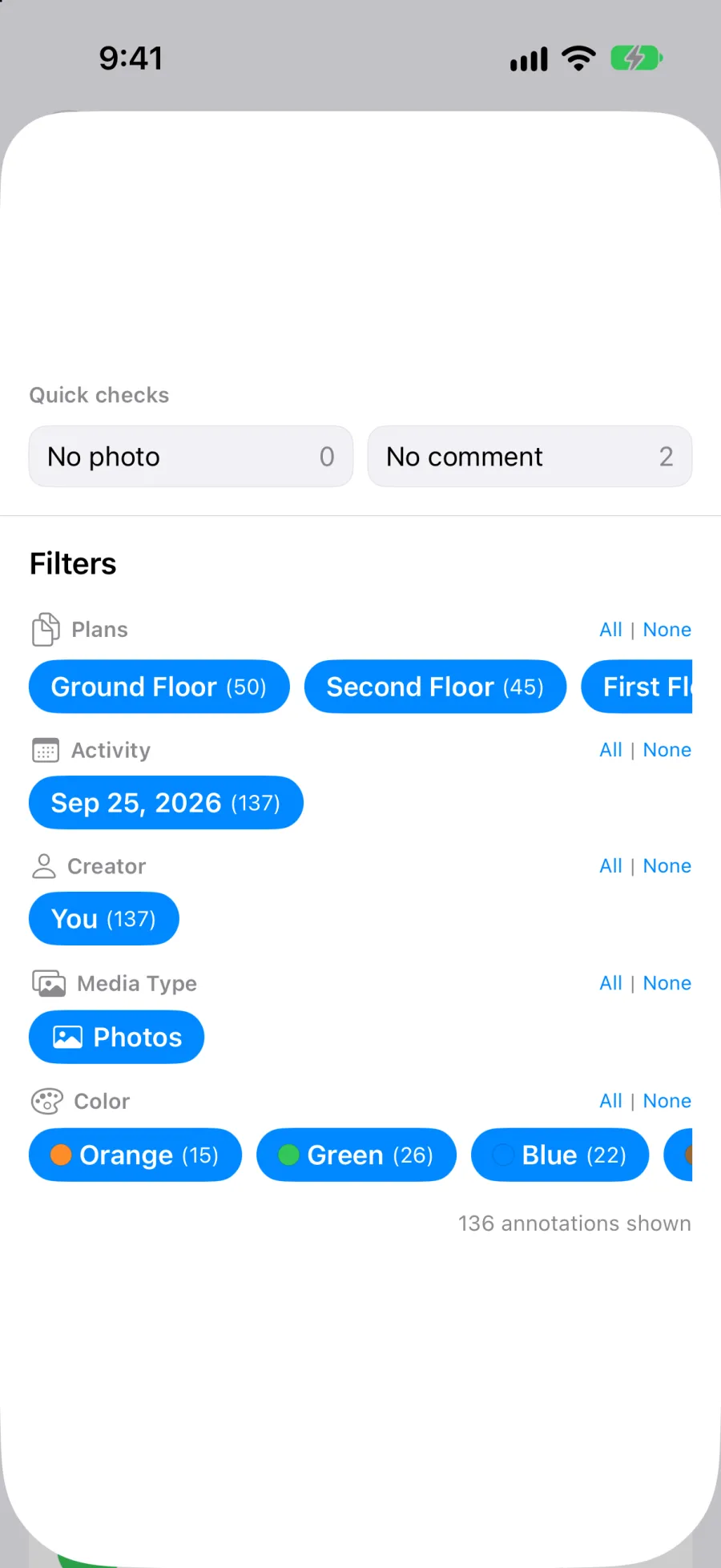
Section titled “Check before you export”The filter button opens two things.
At the top, Quick checks answer the questions a report gets asked before it goes out. Each one shows how many observations it finds:
- No photo: observations with no photo or video. An audio comment alone does not count.
- No comment: observations whose comment is empty.
Turn on both to see the observations that have neither. Fix them from the list, then turn the checks off.
Below, the usual filters: days, authors, media type, plans and colours. Clear All resets the filters and the checks.
Act on an observation
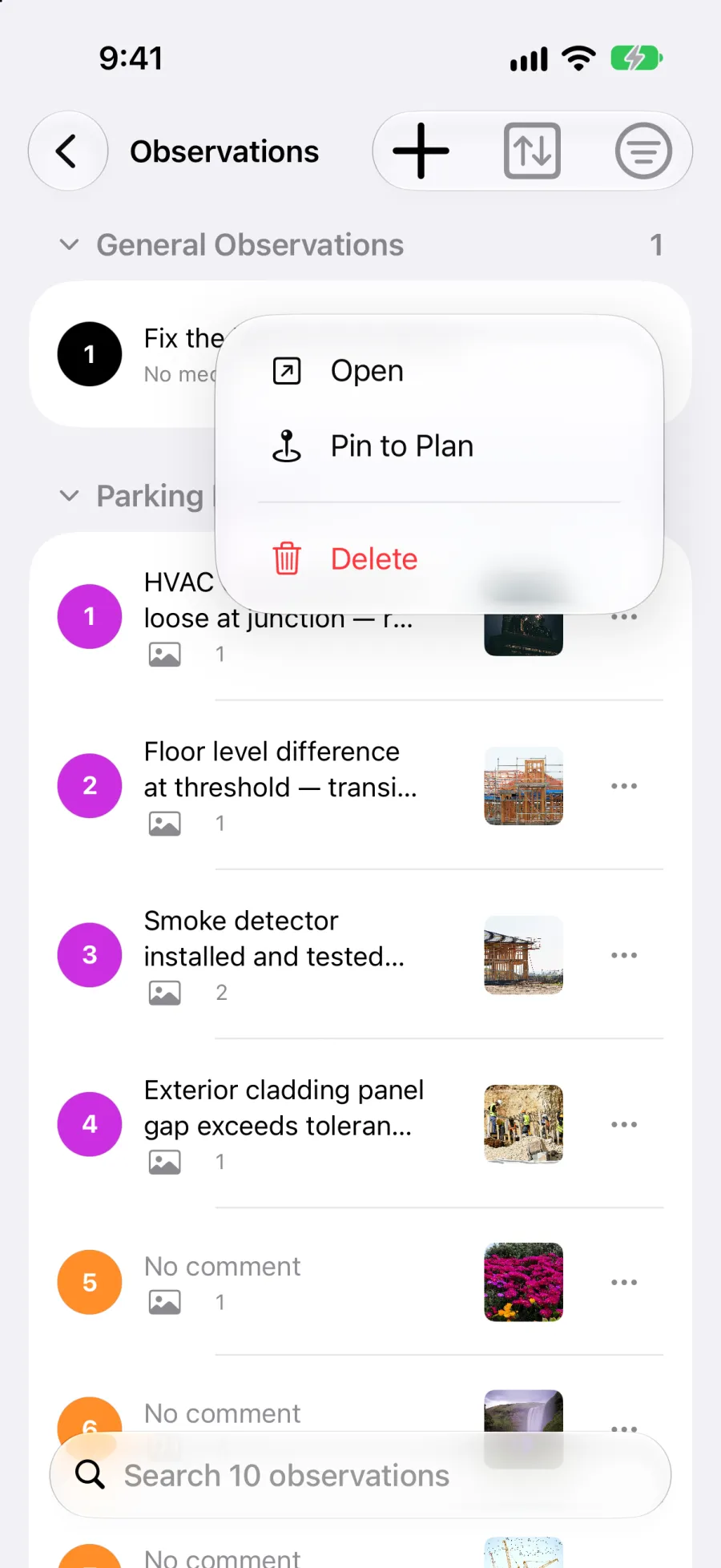
Section titled “Act on an observation”Each row has a ⋯ button. Pressing and holding a row opens the same menu:
- Open: opens the observation.
- Show on plan: for a viewpoint. Opens its plan, zooms onto the pin and briefly highlights it.
- Pin to Plan: for a general observation, when the project has plans. See below.
- Delete.
You can also swipe a row: to the right for Show on plan or Pin to Plan, to the left for Delete.
On a project you can only read, the list shows Open and Show on plan only.
Pin a general observation to a plan
Section titled “Pin a general observation to a plan”Once the plans are imported, you can give a general observation its place.
- Choose Pin to Plan on the observation (menu or swipe to the right).
- Choose the plan.
- Tap where the observation belongs, then drag to set its orientation.
The observation keeps its photos, videos and comment. It becomes a viewpoint on that plan and takes the plan’s next number. The remaining general observations are renumbered from 1.
Add an observation
Section titled “Add an observation”Tap + at the top of the list.
On the whole project, the New observation menu asks what you want to add:
- Under General Observations: Observation with a photo opens the camera (or the photo library if the device has no camera). Observation without a photo creates an empty numbered observation to fill in.
- Under On a plan: the project’s plans, with their observation counts. Choosing one opens that plan so you can tap where the observation belongs.
On a list limited to a plan, + asks nothing: it opens that plan in Visit mode, ready for you to tap where the new viewpoint goes.
Reorder general observations
Section titled “Reorder general observations”A general observation’s number is its place in the report. To change the order, press and hold a row in the General Observations band and drag it up or down. The numbers follow.
Reordering is available when:
- the list is grouped by Plan and sorted by Number,
- no search, filter or quick check is active,
- you can edit the project.
Viewpoints on a plan are not reordered here: their numbers belong to the plan.
In reports
Section titled “In reports”General observations form their own section of the report, in the order of their numbers. See Export a report.
Deleted by mistake?
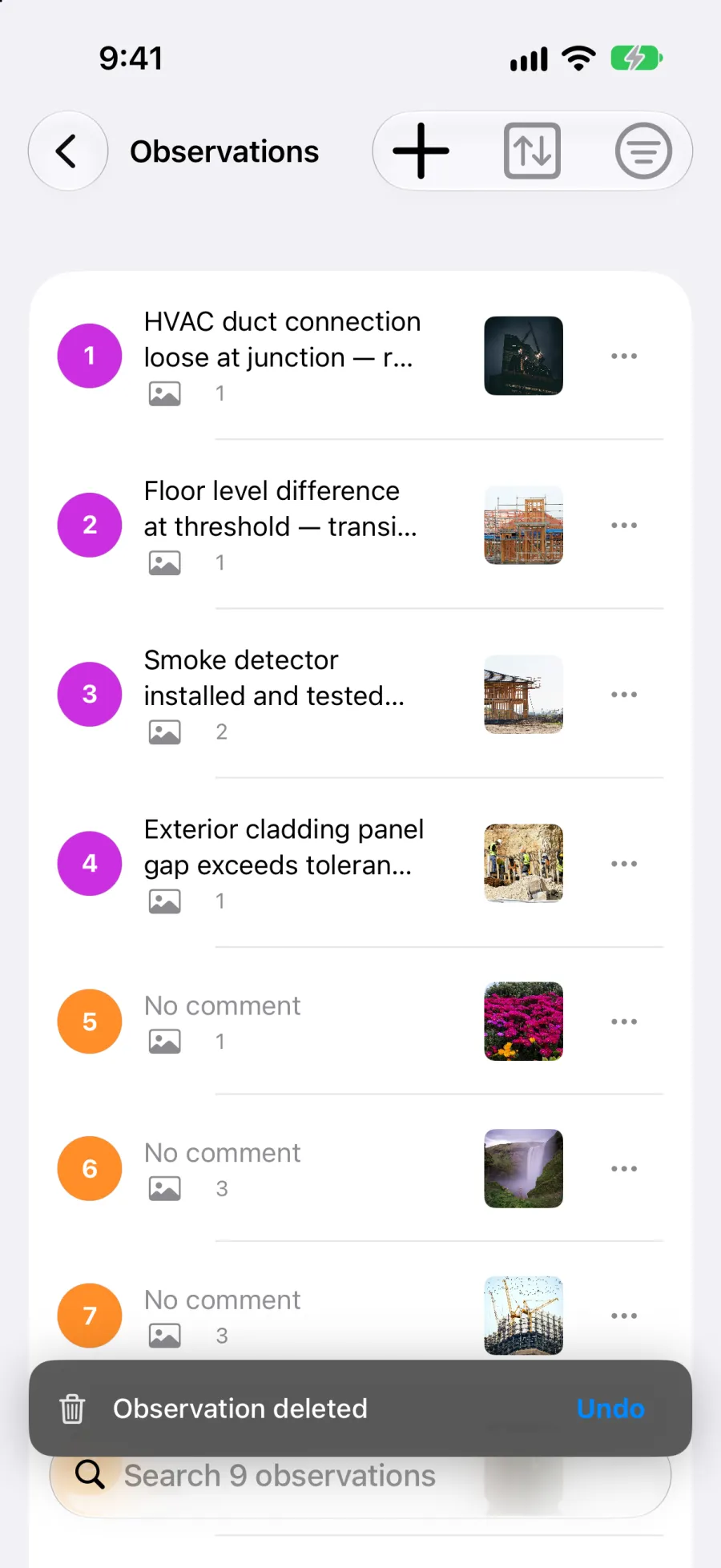
Section titled “Deleted by mistake?”A deleted observation or viewpoint can be brought back. Right after the delete, tap Undo in the bar that appears (it stays for 8 seconds). After that, restore it from Project settings > Recently deleted, where it stays for 7 days. See Recently deleted inside a project.
On the web and on Android
Section titled “On the web and on Android”The same list exists on the web dashboard and on Android, with the same data.