
Plan viewer
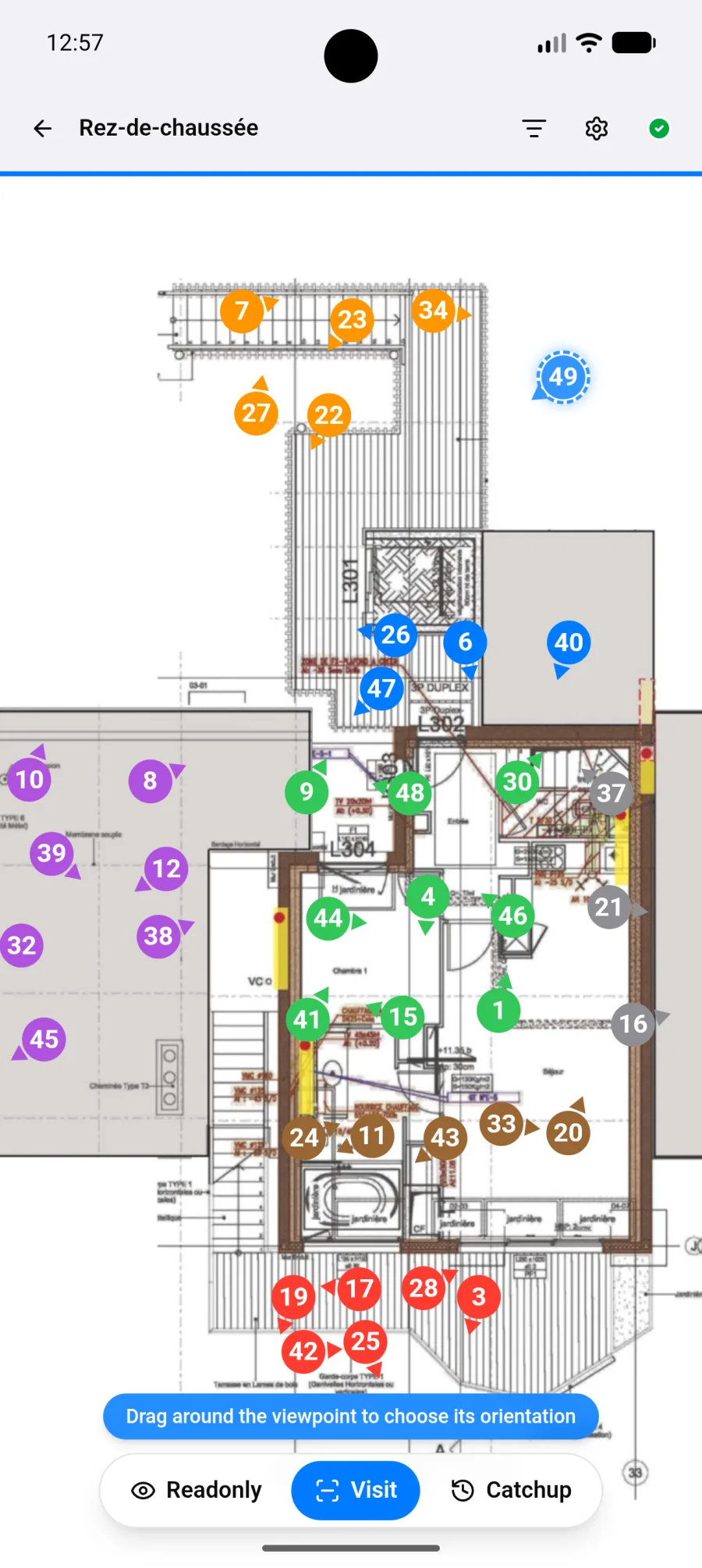
This is the screen where you spend the most time on site: the plan, its markers, and what you need to add more.
Navigating
Section titled “Navigating”- Pinch to zoom.
- Drag with two fingers to move around.
- Fit to width to see the whole plan again.
The toolbar
Section titled “The toolbar”At the top right of the plan:
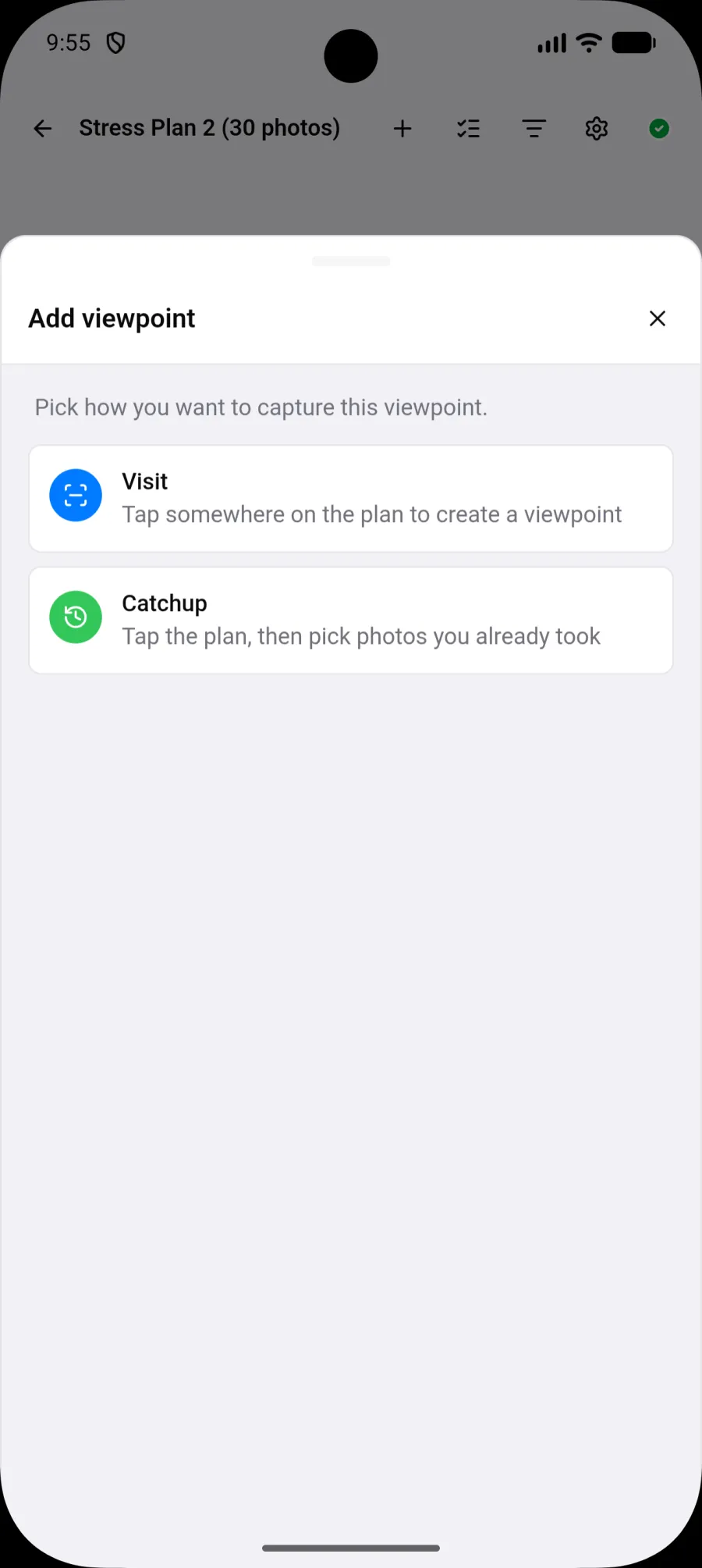
- + (Add viewpoint): starts a new viewpoint. In Readonly mode it first asks whether you want Visit or Catchup. See Annotations.
- Observations on this plan: opens the Observations list scoped to this plan. The back button brings you back to the drawing.
- Filters: see Filtering.
- Plan settings: see Plan settings.
The three working modes
Section titled “The three working modes”A selector at the bottom of the screen decides what a tap on the plan does. It is the most important setting on this screen.
| Mode | What it is for |
|---|---|
| Readonly | Consulting without changing anything. Tapping a marker opens its detail |
| Visit | The everyday working mode. Tapping the plan creates a viewpoint there |
| Catchup | For picking up photos taken earlier and attaching them to viewpoints |
In Visit mode, a bubble reminds you of the expected gesture: tap to create a viewpoint, then drag around the marker to choose its viewing direction.
Viewpoints on the plan
Section titled “Viewpoints on the plan”They appear as numbered markers: a circle carrying the number, and a triangle showing the viewing direction when one is set.
Tap a marker to open its detail panel. Press and hold it for about half a second for its menu: Open, Move, Orientation, Color, Take photos, Add photos, Comment, Record and Delete. The menu works in every mode, Readonly included. See Annotations.
When you arrive from Show on plan in the Observations list, the plan zooms onto that viewpoint and a ring pulses around it.
Filtering
Section titled “Filtering”The Filters button shows only the viewpoints you want:
- Date: those created on a given day.
- Author: those from one team member.
- Media: those containing a photo, a video or an audio clip.
- Colour: one or more of the project’s colours.
Filters stack, and Clear all removes them at once.
Plan settings
Section titled “Plan settings”The gear button opens Plan settings:
- Annotation size, from XS to XL. On a phone, a larger size is easier to hit with a finger; a very dense plan benefits from smaller markers.
- Default annotation color for new viewpoints on this plan.
- Rotate to the left, to straighten a plan imported sideways. The rotation applies for every collaborator.
- Reorder annotation numbers, which reassigns numbers from 1 to N in the current order. This cannot be undone.
- Rename, to change the plan’s name.
- Delete, after a confirmation that says how many viewpoints and photos go with it.
Rename and Delete are the same actions as in the plan’s ⋮ menu on the project screen. A deleted plan can be brought back with Undo for 8 seconds, then from Project settings > Recently deleted for 7 days. See Recently deleted.
Very heavy plans
Section titled “Very heavy plans”A plan exported from CAD software can contain hundreds of thousands of strokes. PhotoReport prepares a lighter copy server-side, generated once at import, and shows that instead of the original file. The original stays intact and serves as the reference for downloads and for the ZIP archive of your reports.
If the data cannot be displayed at all, the viewer falls back to the plan’s preview and tells you, with a Retry button. In that case adding and moving markers is disabled, because the preview may correspond to an earlier version.
Without a network
Section titled “Without a network”A plan already downloaded opens and can be annotated normally. One that has not been shows Plan not available offline. See Offline mode.