
Projects
A project groups all the documentation related to a job site or inspection: plans, annotations, photos, videos and audio comments.
Create a project
Section titled “Create a project”- From the home screen, tap the blue + button.
- Enter the project name (required).
- Add notes (remarks, visit date…) and a cover photo if you wish (optional). The cover photo is the report’s front page, and the project’s thumbnail on the home screen.
- Tap Create Project.
Plans are no longer part of project creation: the project opens empty, and you add plans or general observations from inside it.
An empty project
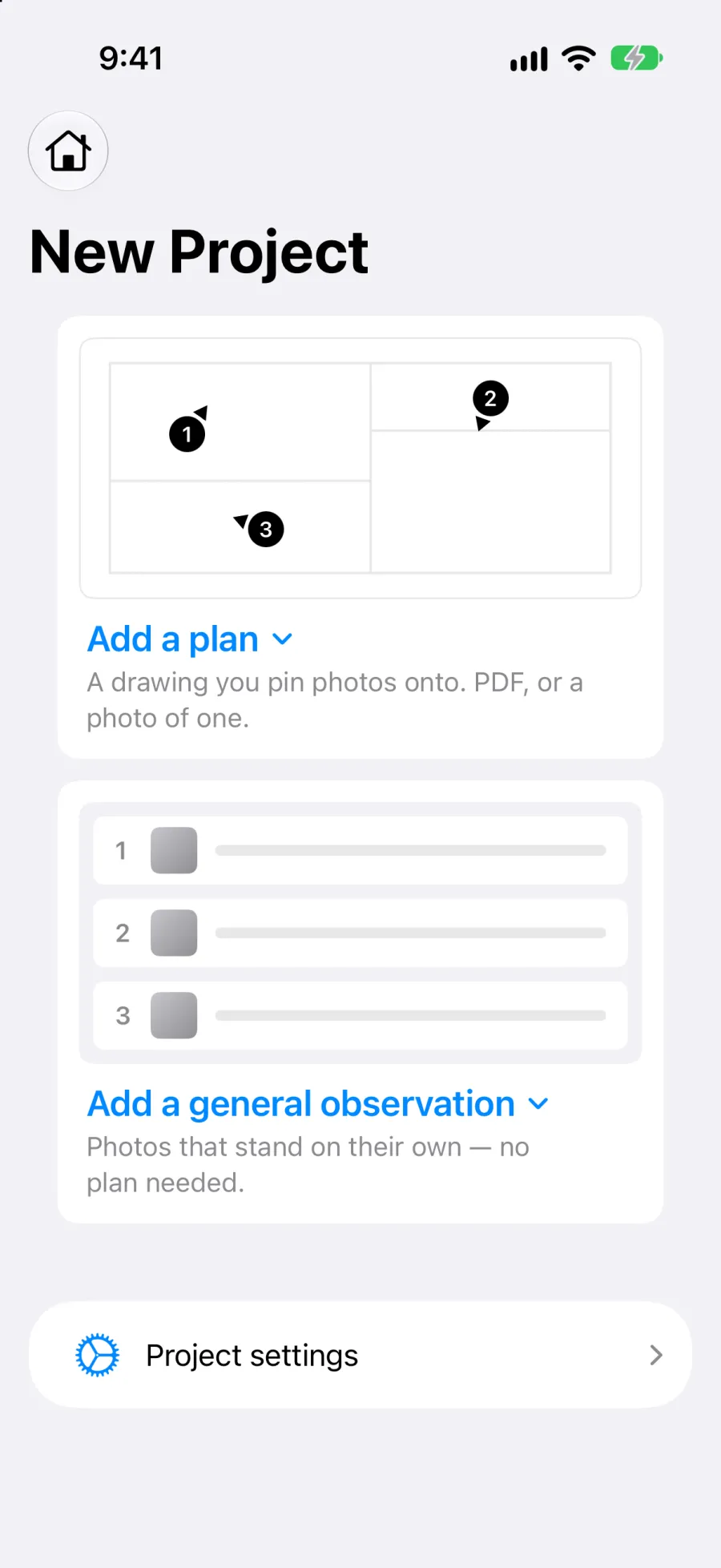
Section titled “An empty project”A new project shows Nothing in this project yet. and two cards, in the sidebar and, on iPad, in the detail pane. A plan is optional: start with whichever fits.
- Add a plan: a drawing you pin photos onto, as a PDF or a photo of one. The card offers Choose a plan (a PDF or image file), Choose a photo of a plan (from your photo library) and Photograph a plan (with the camera). See Import a plan.
- Add a general observation: photos that stand on their own, no plan needed. The card offers Observation with a photo (opens the camera, or the photo library on a device without one) and Observation without a photo (an empty numbered observation to fill in). See Observations.
Add to a project
Section titled “Add to a project”The + button in the project toolbar gathers every way to add something, in one menu:
- Choose a plan, Choose a photo of a plan, Photograph a plan: add a plan.
- Observation with a photo, Observation without a photo: add a general observation.
The project screen
Section titled “The project screen”Once a project has content, the project screen shows:
- The Observations row (in the sidebar) or card (at the top of the iPad detail pane), with the number of observations. It opens the list of every viewpoint on every plan and every general observation. See Observations.
- The plans, each with its thumbnail and its viewpoint and photo counts. See Plans.
On iPad, the detail pane follows the order of the report. A section with nothing in it yet moves below the ones that have content: a project with general observations but no plans shows its observations first and offers Add your first plan underneath.
Edit a project
Section titled “Edit a project”From inside a project, tap the settings icon (or, on the home screen, tap ⋯ on the project card, then Project settings) to edit:
- The project name.
- The notes.
- The cover photo (add, replace or remove).
- The collaborators and invitations (previously a separate screen, now folded into project settings), see Manage members.
Delete a project
Section titled “Delete a project”Only the project’s owner can delete it, in two places:
- On the home screen, tap ⋯ on the project card (or press and hold the card), then Delete. See Home screen.
- In the project settings, tap Delete project at the bottom of the screen.
The confirmation says what goes with the project, for example “This also deletes 12 viewpoints, 48 photos and 2 audio notes.”
A deleted project can be brought back:
- For a few seconds, a Project deleted bar offers Undo.
- After that, the project stays in Settings > Recently deleted for 7 days. Only its owner can restore it or delete it permanently from there. See Settings.
Recently deleted inside a project
Section titled “Recently deleted inside a project”Everything deleted inside a project (plans, viewpoints, general observations, photos, videos, audio notes) goes to Project settings > Recently deleted. The row shows how many items it holds.
- Each item shows how many days it has left before it is removed for good.
- Restore puts the item back where it was, with its original number.
- Delete permanently removes the item and its files for good, for everyone on the project.
Every member who can edit the project can restore or permanently delete these items, whoever deleted them. If an item’s plan is itself deleted, the app asks you to restore the plan first.
Local and cloud projects
Section titled “Local and cloud projects”- Local project: stored only on your device. Available in guest mode and on the free plan.
- Cloud project: synced to the cloud and accessible from all your devices and the web dashboard. Available on every plan, within your storage quota.
When you sign in, your local projects can be converted to cloud projects.