
Projects on the dashboard
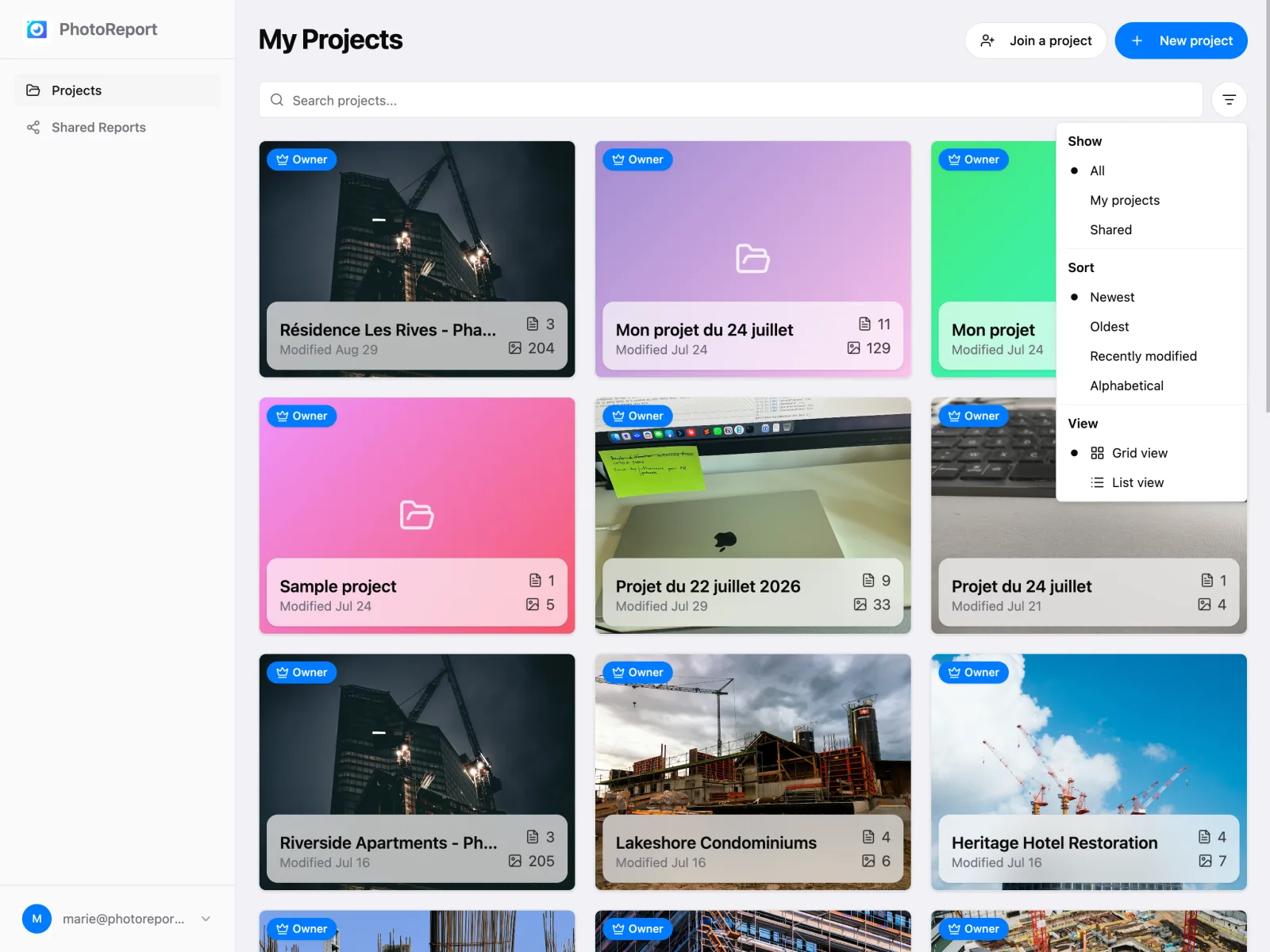
My projects is the landing screen of the dashboard. It brings together the projects you created and those shared with you.
Creating a project
Section titled “Creating a project”- Click New project.
- Give the project a name, for example “Villa Les Ormes”.
- Add a description if you want. It is visible to your team.
- Click Create project.
You land straight inside the project. A plan is optional: see Starting a project.
The sample project
Section titled “The sample project”If you have no projects yet, the home screen also offers Try a sample project. PhotoReport then creates a project already filled in, with a plan, a few annotations and a general observation, so you can see the result before investing time in a real site.
You can explore, edit or delete it freely. You can only create one.
Joining a project
Section titled “Joining a project”The Join a project button is for when someone has shared an invitation code with you rather than a link. Enter the code and you join the project.
If you received a link, just open it: it takes you straight to the project. See Invite collaborators.
Finding a project
Section titled “Finding a project”Each project appears as a card with:
- The cover photo. A project without one shows the photo of its first general observation, or a colour gradient if it has none either.
- The project name.
- Counters: number of plans (hidden when there are none) and photos.
- The last modified date, for example “Modified 2 hours ago”.
- A role badge showing whether you are the owner or a collaborator.
- A ⋮ button (More actions). It is always visible on a touch screen and appears when you hover the card with a mouse. Right-clicking the card, or pressing and holding it on a touch screen, opens the same menu.
The card menu offers Open, Project Settings, and Delete if you own the project or Leave project if it was shared with you. Projects are renamed in Project settings, not from the card.
To find your way once the list grows:
- Search: type a name or part of a description.
- Filter: All, My projects or Shared.
- Sort: Newest, Oldest, Recently modified or Alphabetical.
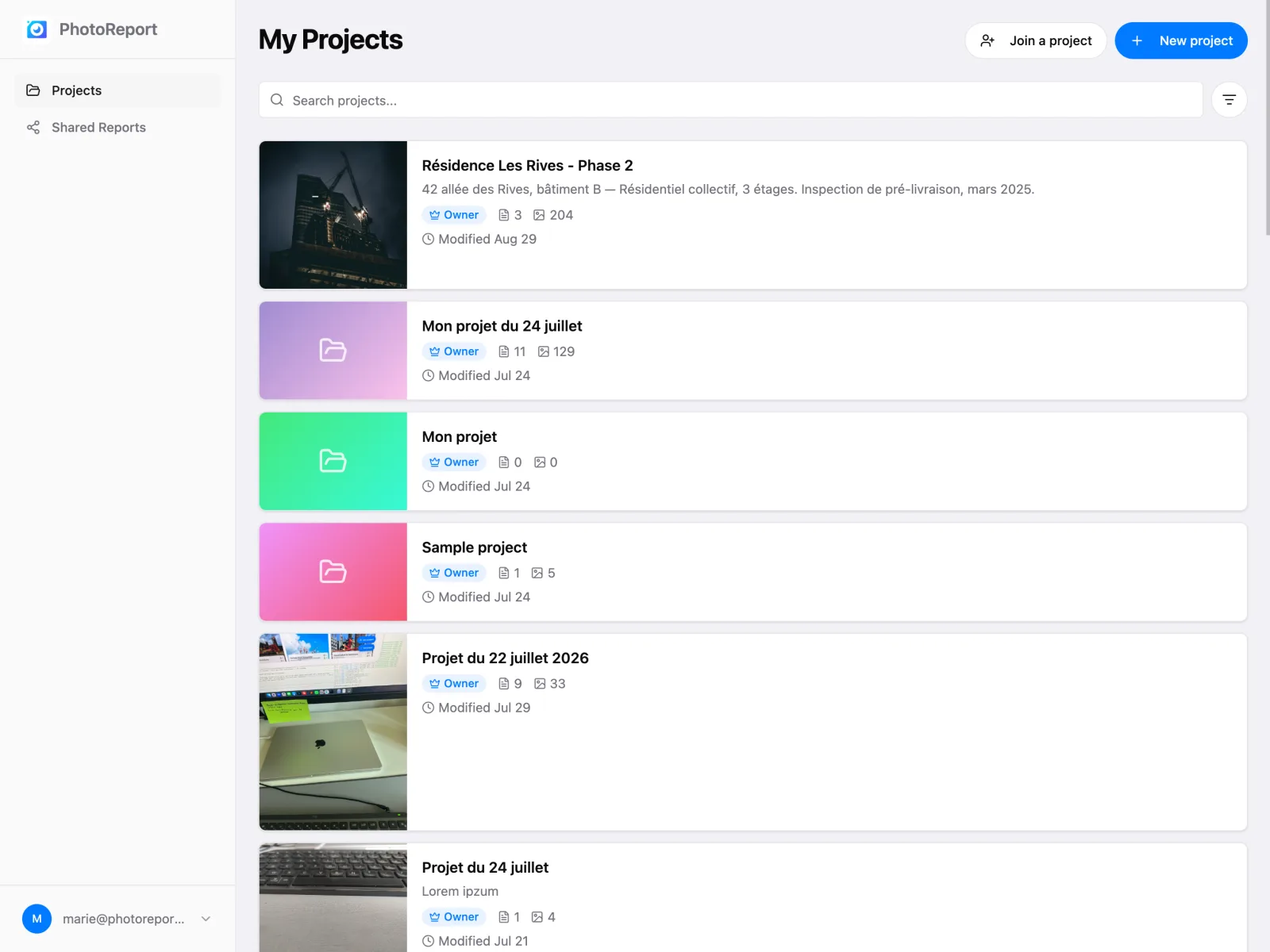
- View: switch between grid view and list view.
Starting a project
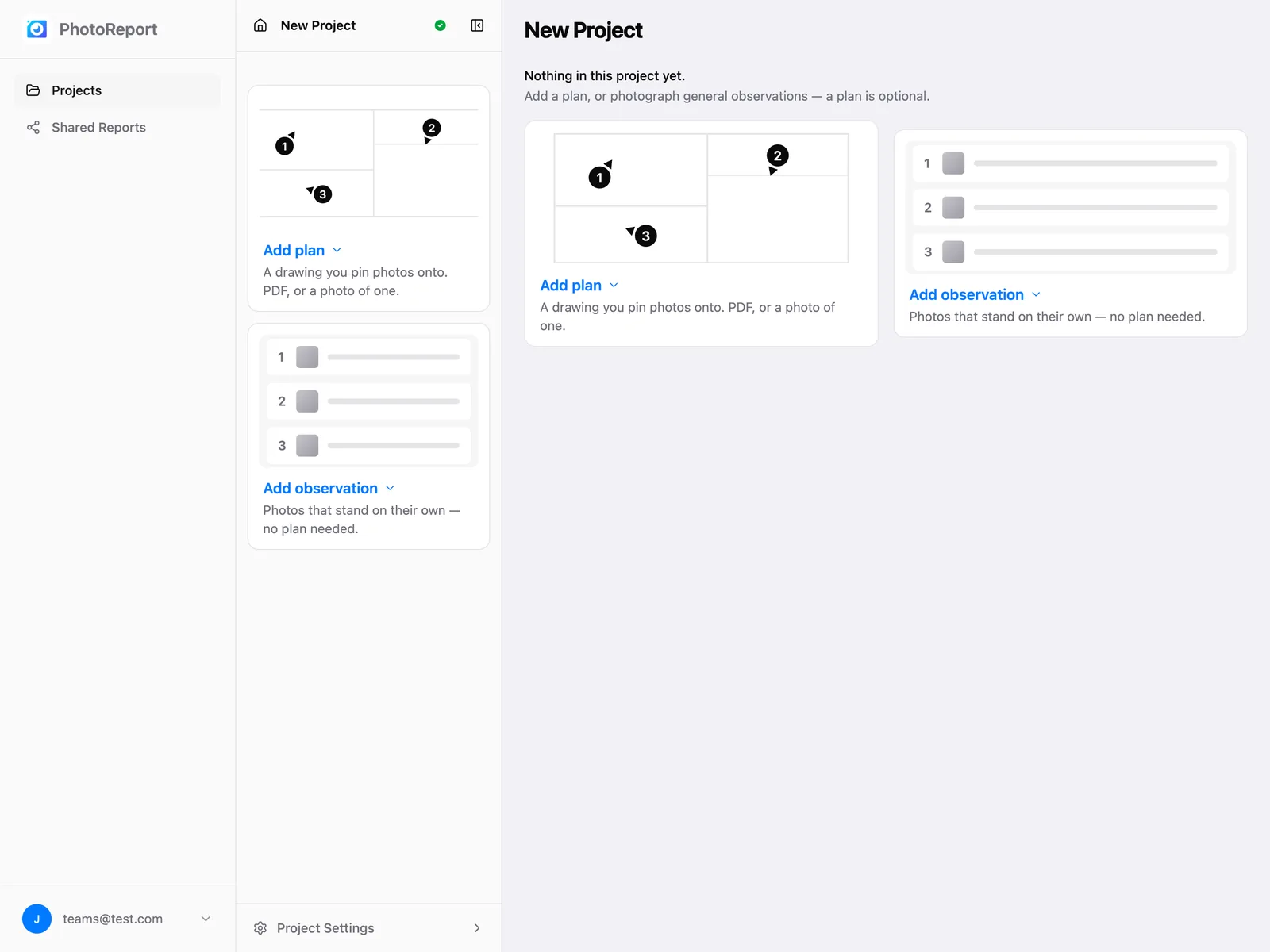
Section titled “Starting a project”A new project is empty, and the screen says so: Nothing in this project yet., with a reminder that you can add a plan or photograph general observations, and that a plan is optional. Two cards offer both ways in:
- Add plan: a drawing you pin photos onto. PDF, or a photo of one. See Import a plan.
- Add observation: photos that stand on their own, no plan needed. Choose Observation with a photo or Observation without a photo. See Observations.
Once the project holds something, the cards give way to the normal project screen. If it has observations but no plan yet, the plans section reads No plans yet. with an Add your first plan button.
Inside a project
Section titled “Inside a project”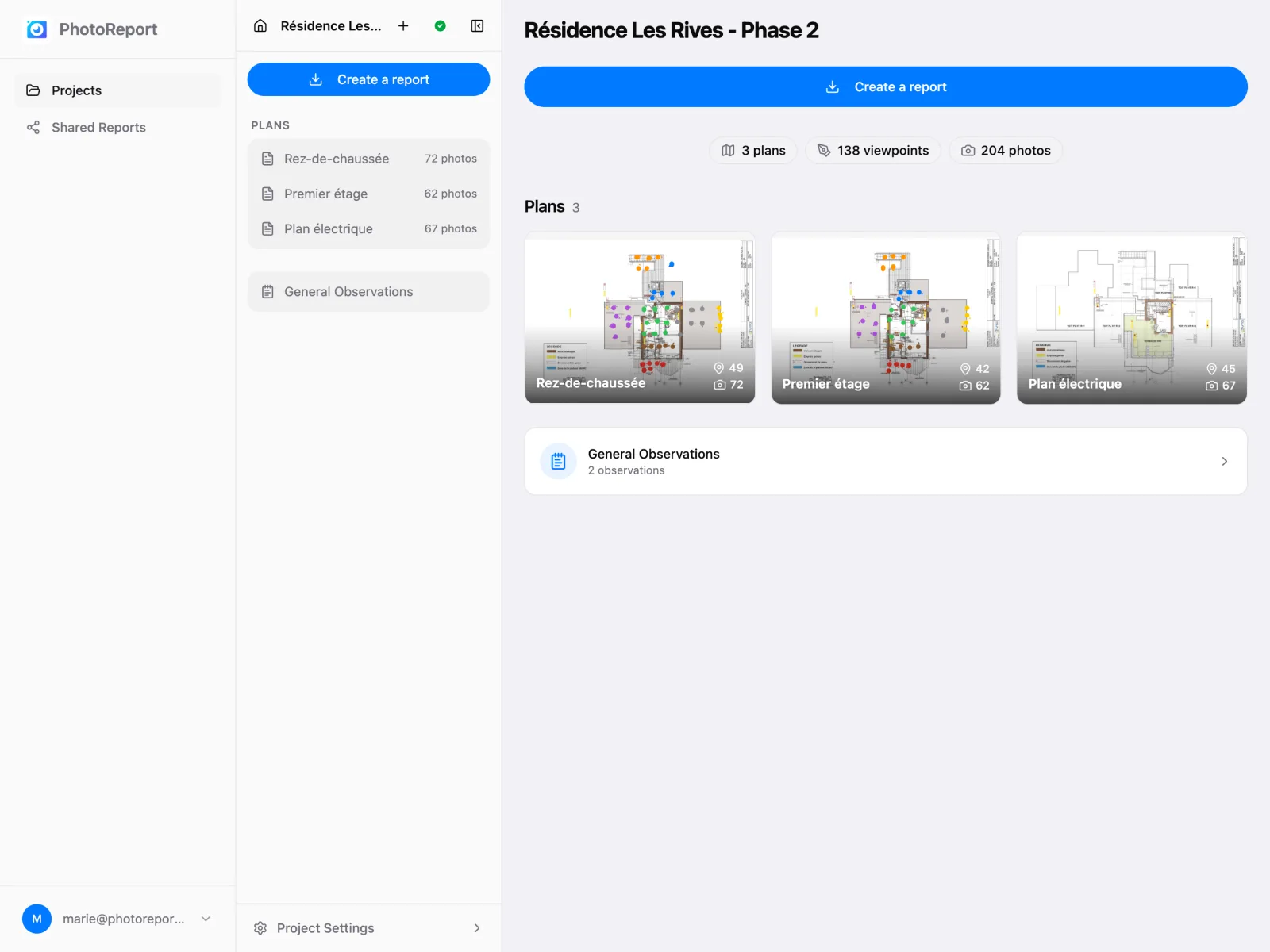
Click a project to open it. On a wide screen, a sidebar sits next to the project’s detail. The sidebar holds:
- At the top, the project name, the + button and the sync status.
- Create a report. See Create a report.
- Observations, with a count: the list of every viewpoint on every plan and every general observation. See Observations.
- The plans, each row showing the plan’s thumbnail and its viewpoint and photo counts. A row’s ⋮ menu offers Rename and Delete.
- Project Settings, at the bottom.
The detail shows a statistics bar (plans, viewpoints, photos; a counter at zero is hidden), the Observations card with its own +, then the plans grid. Each plan card carries its viewpoint and photo counts and a ⋮ menu: Open, Rename, Delete. Click a plan to open it in the viewer. A section with nothing in it moves below the ones that have content.
On a phone, the same content sits in one column, with Project Settings as a row at the end.
The two + buttons do different things:
- The + at the top (next to the project name) adds a plan (Import PDF or Plan from photo) or a general observation (Observation with a photo or Observation without a photo).
- The + on the Observations card opens New observation: a general observation with or without a photo, or On a plan, which opens the plan you pick so you can click where the observation belongs.
Project settings
Section titled “Project settings”The Project settings button opens a window gathering everything that is set per project.
Properties
Section titled “Properties”Edit the project name and information. The information field is for what applies to the whole project: visit date, purpose, remarks.
Cover photo
Section titled “Cover photo”Add, replace or remove the image representing the project in your list. It appears only there, never in reports.
Colours
Section titled “Colours”Rename the default colours for this project, or hide the ones you do not use to keep the pickers light. You can also choose the default colour applied to new viewpoints.
With a Pro or Teams subscription, add custom colours. They are shared with everyone on the project and available on every platform.
Collaboration
Section titled “Collaboration”Invite collaborators and manage existing members. See Invite collaborators and Manage members.
This is also where you mute notifications for this project alone, without touching the others.
Recently deleted
Section titled “Recently deleted”Everything deleted inside the project (plans, viewpoints, general observations, photos, videos, audio notes) waits here for 7 days, then is removed for good. The row shows a count when something is in it. Each entry shows how many days it has left.
- Restore puts the item back where it was, with its original number.
- Delete permanently removes the item and its files for good, for everyone on the project. It cannot be undone.
If an item’s plan was deleted too, the app asks you to restore the plan first. Every member can see this list, whoever deleted the item, and any member of the project can restore or permanently delete from it.
Deleted projects are not here: they are in the app’s own Settings > Recently deleted.
Deleting or leaving a project
Section titled “Deleting or leaving a project”- Click Delete project at the bottom of Project settings, or Delete in the project card’s ⋮ menu.
- Confirm in the window that opens. It says what the project holds.
An Undo bar stays on screen for 8 seconds. After that, the project waits in Settings > Recently deleted for 7 days, where you can restore it from any platform (web, Android or iOS).
If the project is not yours, its card menu offers Leave project instead. You lose access, and the owner can invite you back at any time.