
App settings
The Settings screen is accessible from the gear icon in the bottom right of the home screen.
Account
Section titled “Account”At the top of the screen, you’ll find your account information (or a Sign in or create an account button if you’re not signed in). Tap it to open the account management screen, where you can change your email address or password and delete your account. See Account and sign-in for details.
Your subscription
Section titled “Your subscription”Shows your current plan (Free, Pro or Teams) with a link to upgrade. See Subscription.
Save photos to Camera Roll
Section titled “Save photos to Camera Roll”This toggle controls whether photos taken in PhotoReport are automatically saved to your iPhone’s Photos app. When enabled, every photo you take with the camera in an annotation is also saved to your camera roll. Photos you pick from your library are not saved a second time, so no duplicates pile up.
Photo quality
Section titled “Photo quality”Choose the resolution of photos taken from the app:
- Standard (1280 px), Lighter files and faster export. Default for fresh installs.
- High (1920 px), Maximum detail preserved. Default for existing users migrated from a previous version.
Default zoom
Section titled “Default zoom”Set the zoom of the back camera applied when the camera opens (0.5×, 1×, 3×…). The list of values adapts to the lenses available on your device.
Company profile
Section titled “Company profile”Configure your company logo, name and address. This information appears on the cover page of PDF reports and in the header of HTML reports. See Company profile.
Feedback
Section titled “Feedback”- Send feedback: opens a pre-filled email to contact the PhotoReport team.
- Please rate PhotoReport: opens the App Store listing to leave a review.
About and help
Section titled “About and help”- About and Help: links to the PhotoReport site and its help pages.
- See welcome screen again: replays the onboarding tutorial shown on first launch.
- What’s new in this version: shows again the new features presented after the last update.
- Recently deleted: your deleted projects, see below.
- Version: the installed app version.
Recently deleted
Section titled “Recently deleted”Deleting something is no longer final. Right after a delete, a bar appears for 8 seconds (“Project deleted”, “Photo deleted”, and so on) with an Undo button. Only the last delete can be undone this way. After that, the item waits in Recently deleted for 7 days, then is removed for good.
There are two Recently deleted lists:
- Settings > Recently deleted lists your deleted projects: the ones you own, and local projects on this device. A deleted project no longer has project settings, so this is where it comes back from.
- Project settings > Recently deleted lists everything deleted inside that project: plans, viewpoints, observations, photos, videos and audio notes. The row shows how many items are waiting. See Projects.
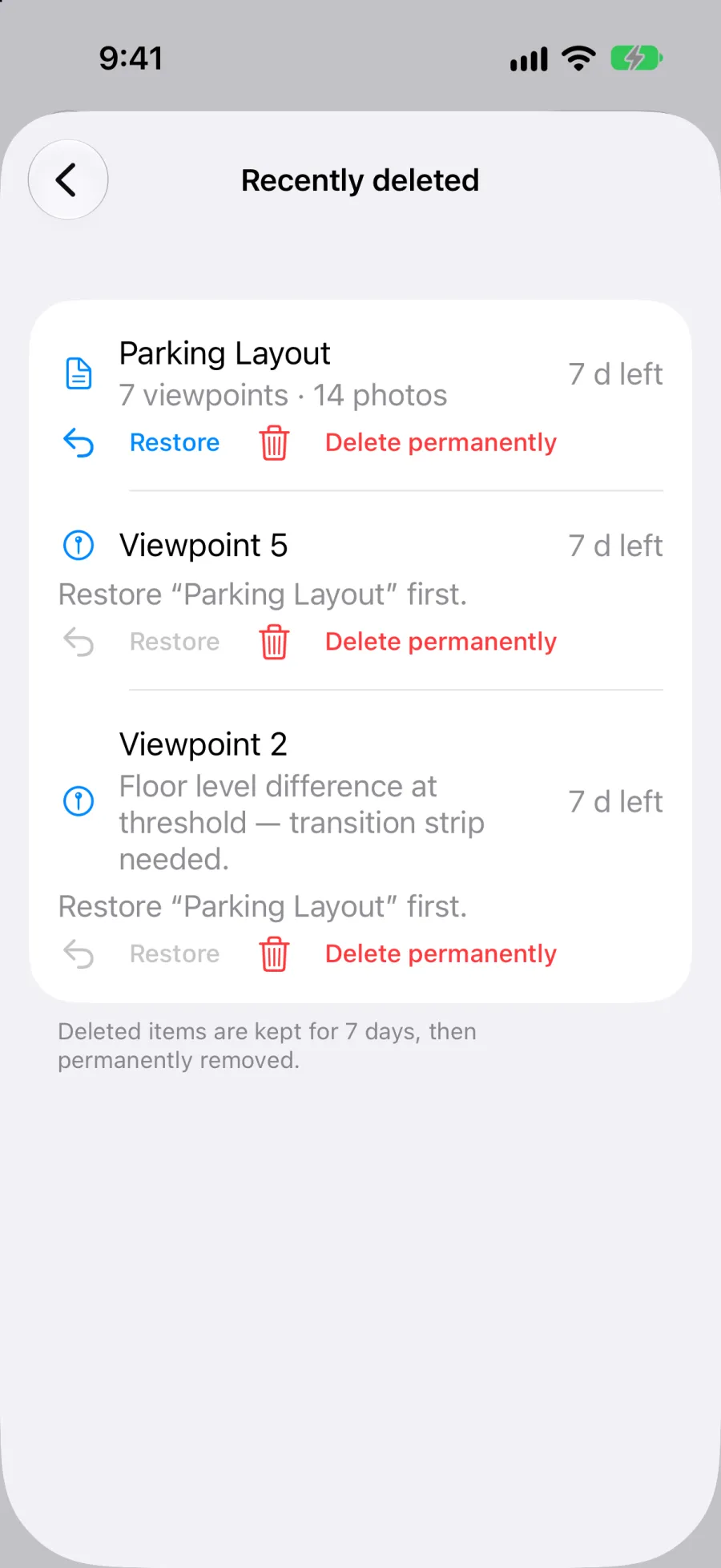
Each row shows the time left before it goes (for example “5 d left”) and two actions:
- Restore puts the item back where it was, with its original number. Nothing gets renumbered.
- Delete permanently asks for confirmation, then removes the item and its files for good, for everyone on the project. This cannot be undone.
If the item’s parent is deleted too, for example a viewpoint whose plan is also in the list, the row says “Restore [plan name] first.” Restore the plan, then the viewpoint.
Who can act:
- A deleted project can only be restored or permanently deleted by its owner. Collaborators do not delete a shared project, they leave it.
- Inside a project, every member sees the list, and any member can restore or permanently delete an item, whoever deleted it.
- If the project is read-only for you (for example when a Teams subscription has ended), you can see the list but Restore and Delete permanently are unavailable.
Deleting your account does not go through Recently deleted: it is immediate and permanent. See Delete my account.