
Report templates and style
Create Report opens on a preview of your report, cover included. You choose how the report looks on the left, and the preview on the right shows the pages as your client will receive them. The screen is the same on iPhone, iPad, Android and the web dashboard.
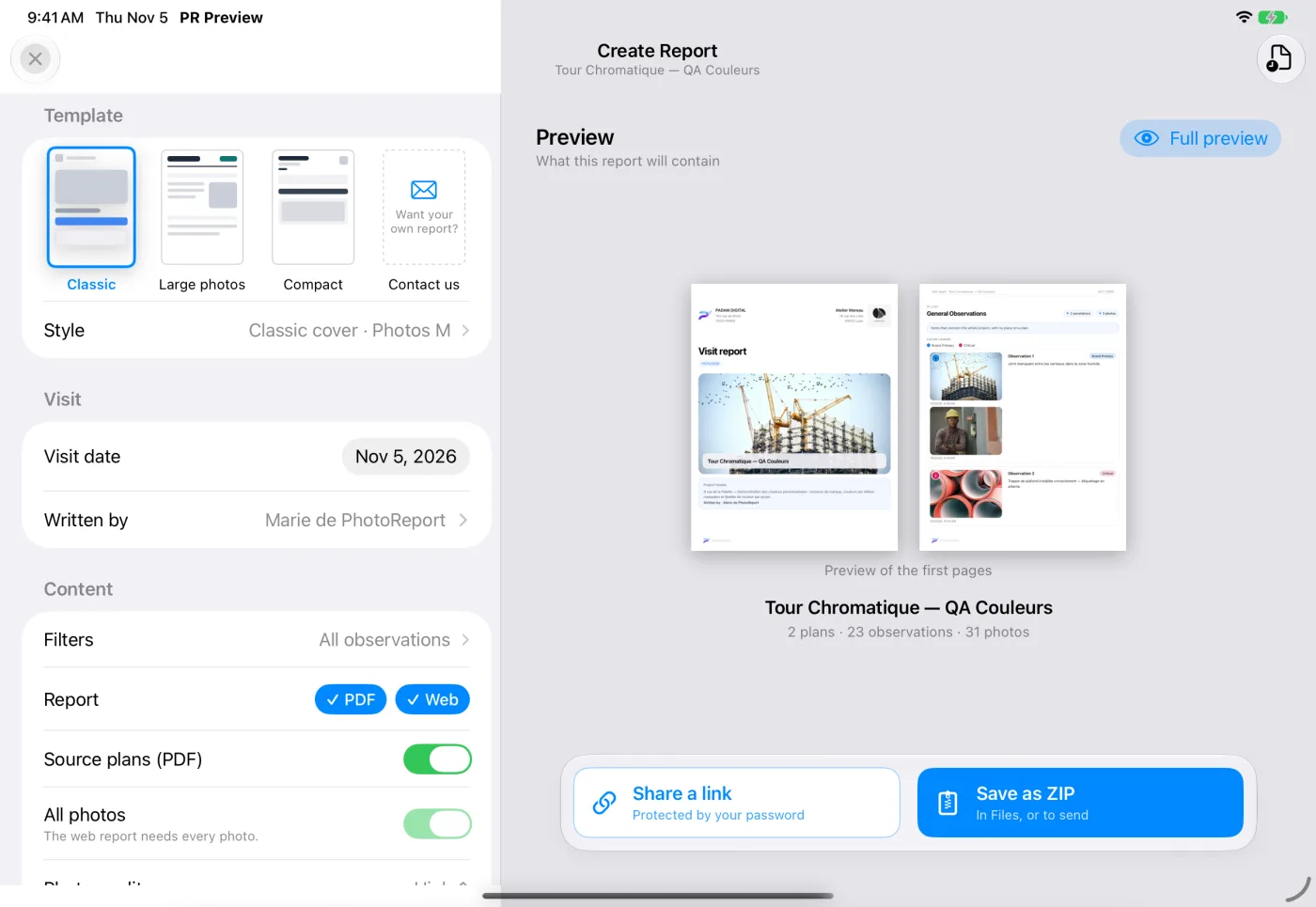
To open it and send the report, see Create a report on iOS, Android or the web dashboard.
Pick a template
Section titled “Pick a template”A template is a starting point. Four are offered:
| Template | What it gives you |
|---|---|
| Contemporary | A Site photo cover page and the Contemporary look: a large black title, the site photo across the full width, rounded observation cards. For a first report, it is the template selected at the start |
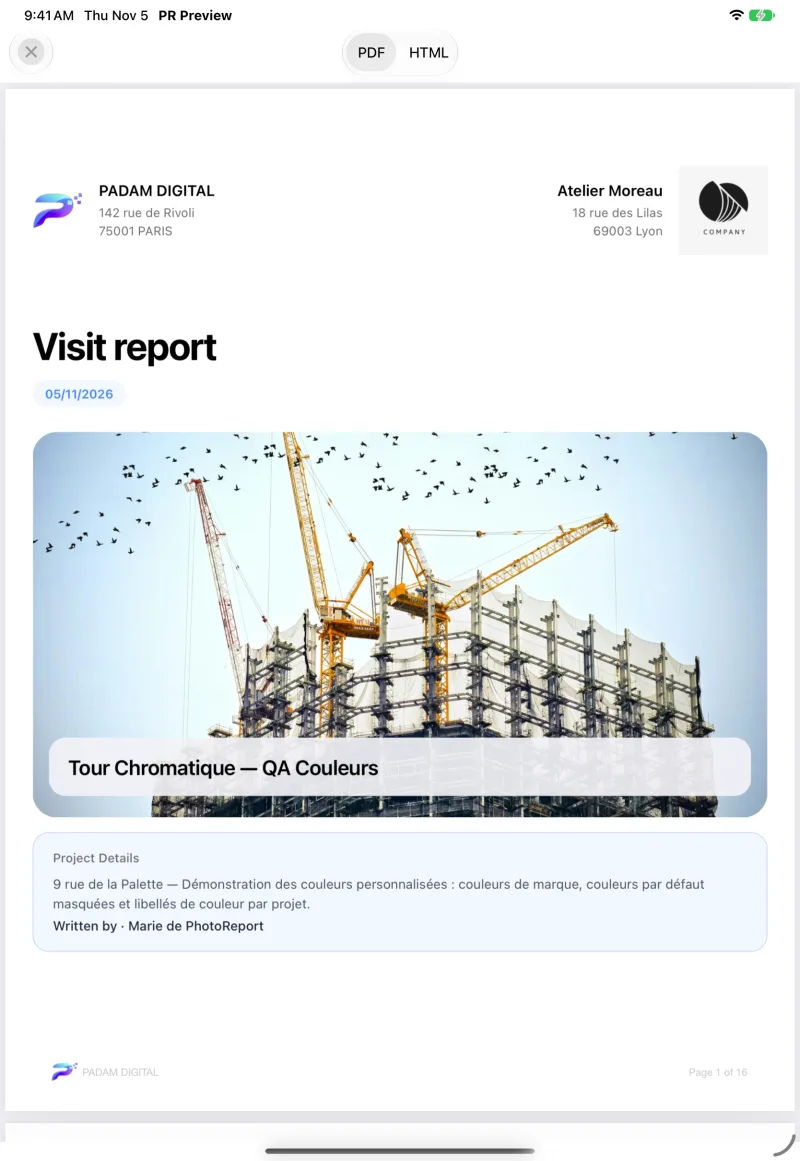
| Classic | The closest to the report you know: a cover page, medium-size photos to the left of the comment, the color legend |
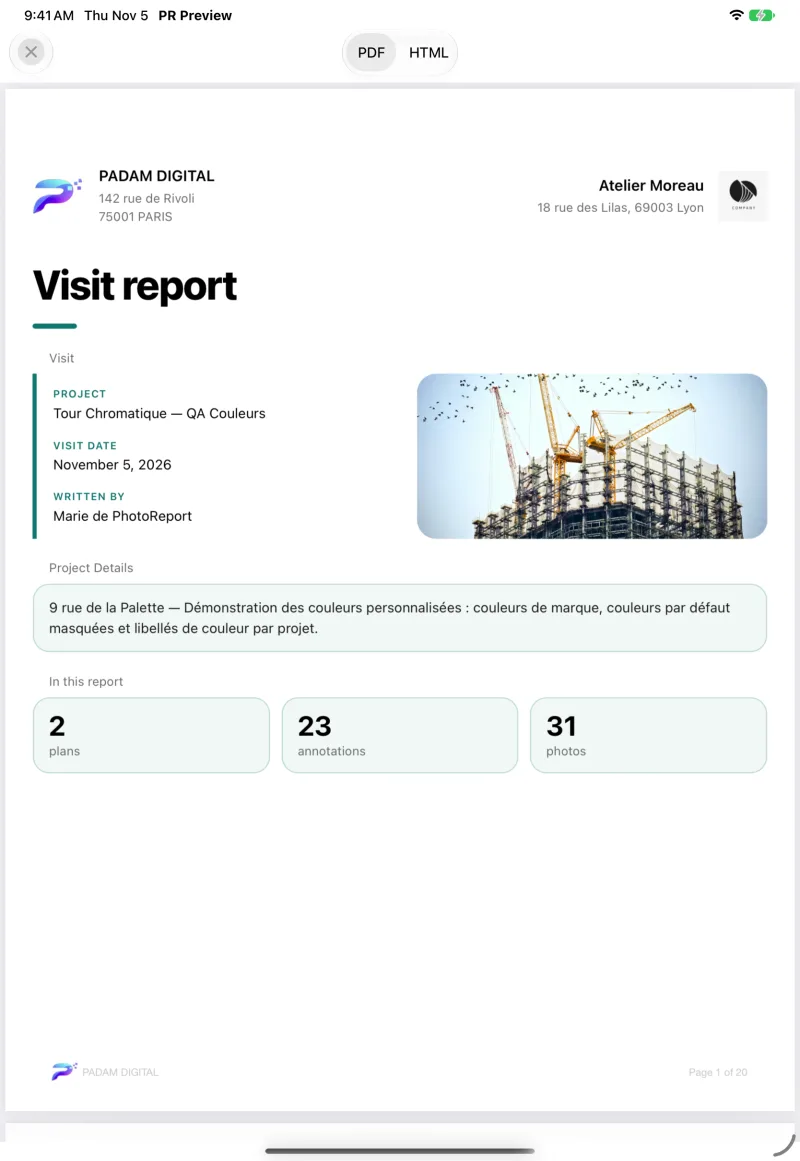
| Large photos | When the photo is the evidence: much larger photos, and its own cover page, Fact sheet |
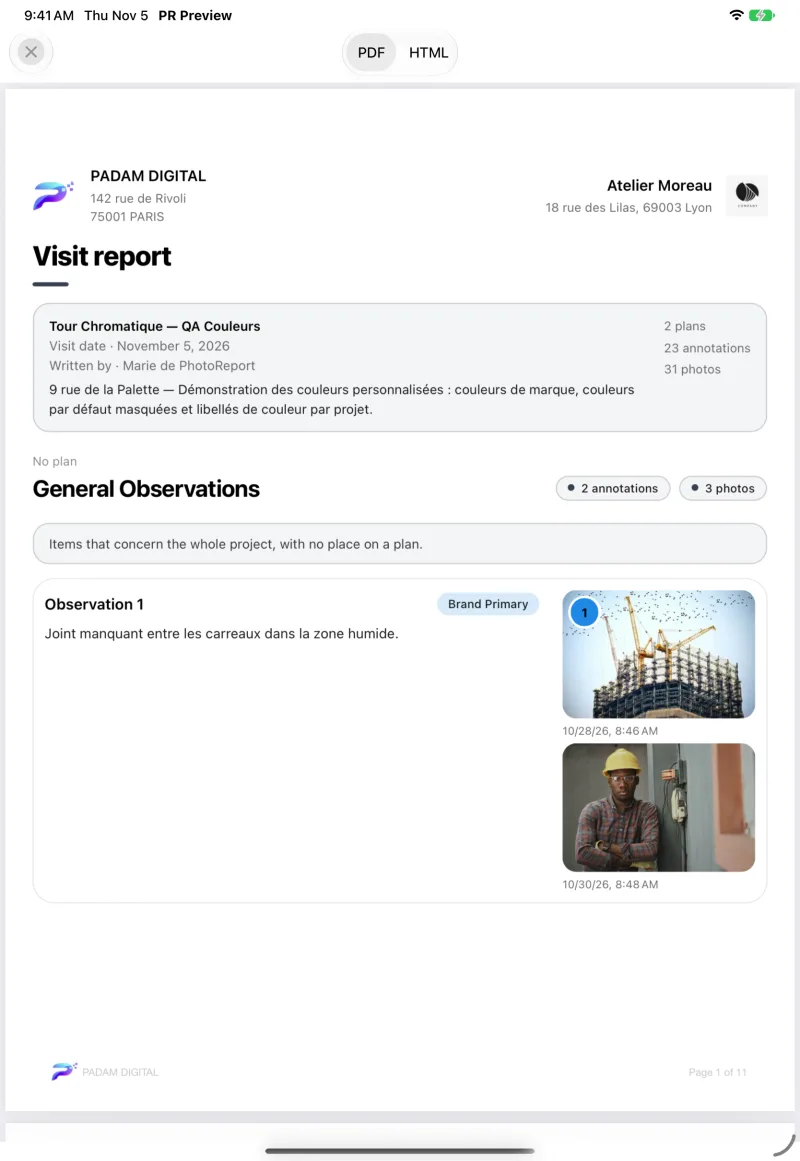
| Compact | For a short report: no cover page but a header at the top of the first page, small photos to the right of the comment, three per row at most |
| Classic | Large photos | Compact |
|---|---|---|
 |  |  |
Your saved templates, if you have any, appear first in the list. See Save your settings as a template.
After the four templates, the New template tile opens Style so you can set a style and save it under a name. Like saved templates, it requires Pro.
The visit and its author
Section titled “The visit and its author”The Visit section sets what the cover says about the visit:
- Visit date: the visit date recorded in the project or, failing that, the day of the export. Change it if you write the report a few days later.
- Written by: your name by default. Pick one or more Project members, type Other names separated by commas, or choose None. The names are remembered for this project on this device.
Both print on every cover and in the online report, on every plan, Free included.
Adjust the style
Section titled “Adjust the style”Tap Style to adjust each element of the template. The preview follows every change. If you change a template, Unsaved changes appears, and Back to the template’s name undoes your changes.
Cover page
Section titled “Cover page”Four covers, to combine with any template: Classic, Site photo, Fact sheet and Compact.
The cover carries the project name, the visit date, the author, your company profile and, with Pro, your client’s name, address and logo (see Projects on iOS, Android or the web).
Two looks for the observation cards: Classic and Contemporary. Each template has its own: Contemporary for the Contemporary template, Classic for the other three. If you made reports before version 2026.11, a new report starts on the Classic template, the report you know. Otherwise it starts on the Contemporary template. The look also changes the Site photo and Fact sheet covers: in Classic, the title sits in a colored bar and the project card under the photo; in Contemporary, the title is large and black, with the card over the photo. The look applies to the PDF only.
Accent color
Section titled “Accent color”The accent color colors the title bars and the section rules. Their text turns black or white so it stays readable. Each template has its own accent.
Seven colors are offered (Blue, Navy, Teal, Green, Amber, Burgundy, Graphite), plus a Custom color. If you pick a light color, a warning tells you the title bars will be hard to read in print.
Photos
Section titled “Photos”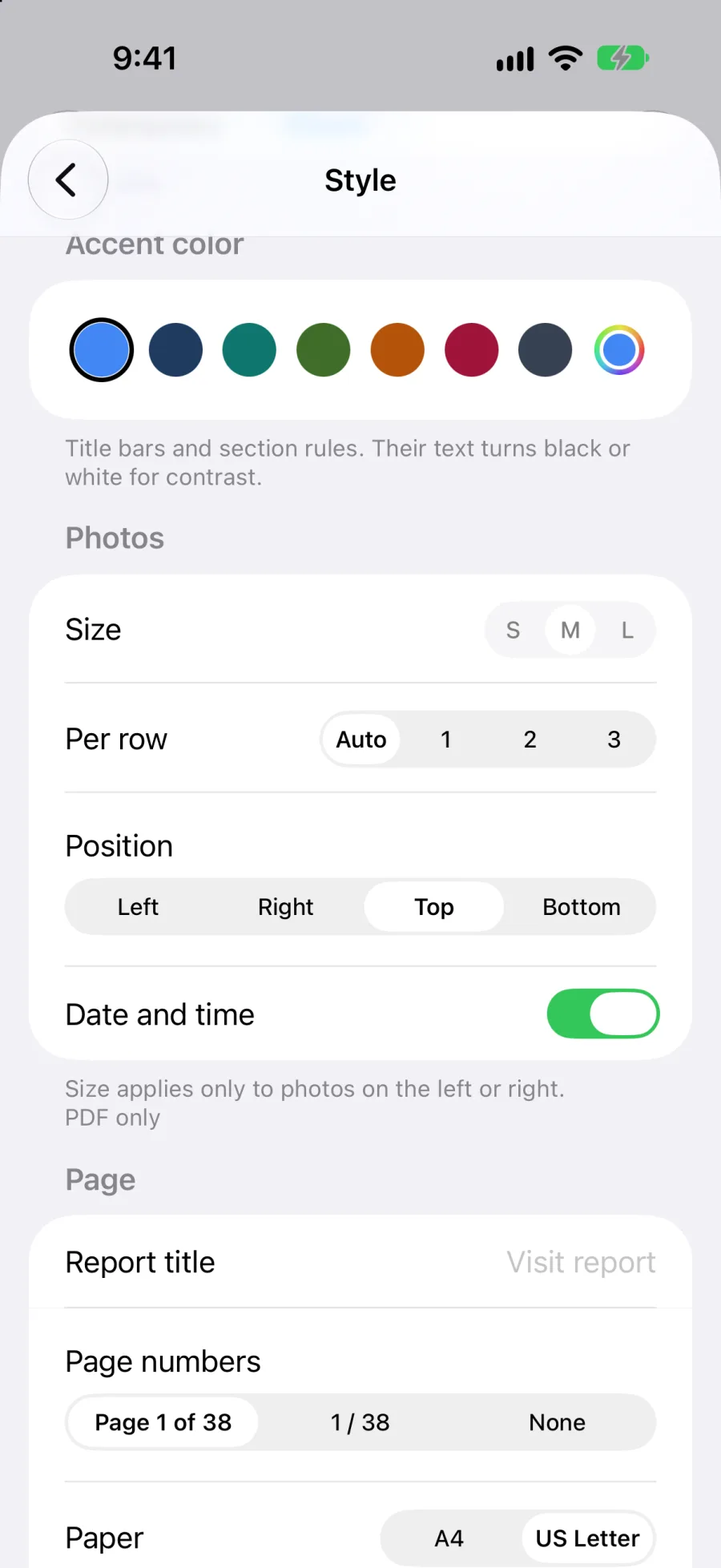
| Setting | Choices |
|---|---|
| Size | Small, medium or large. Applies only to photos on the left or right of the comment |
| Per row | Auto, 1, 2 or 3 |
| Position | Left, Right, Top or Bottom of the comment |
| Date and time | Prints when each photo was taken, under the photo |
Date and time is on by default for a new report. Photos taken before version 2026.11 have no date unless you add one by hand: see Photos and videos on iOS, Android or the web.
| Setting | What it does |
|---|---|
| Report title | The report’s title, “Visit report” if you leave it empty |
| Page numbers | ”Page 3 of 38”, “3 / 38” or None |
| Paper | A4 or US Letter |
| Color legend | The list of colors and what they mean. It prints only when a color has a custom label |
Page numbers and paper apply to the PDF only.
Photo and plan annexes
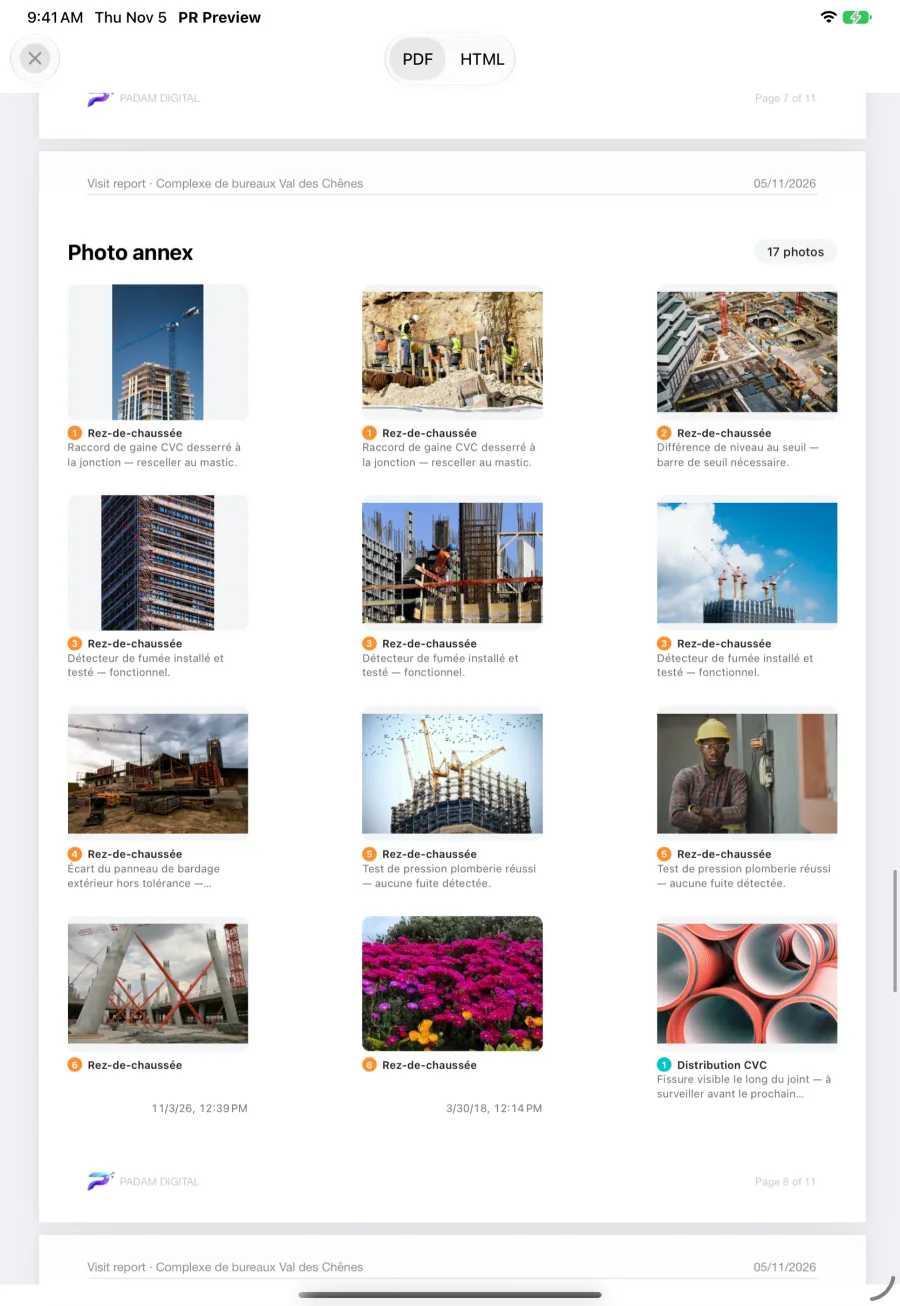
Section titled “Photo and plan annexes”Two annexes can close the report. They apply to the PDF only. Turn on Photo annex and Plan annex in the Content section of Create Report: both are off until you do. Like the style, they are saved with a template.
- Photo annex: every photo of the report in a grid, twelve per page, each one shown whole, with the observation number, the plan, the start of the comment and the date.
- Plan annex: each plan on a page of its own, with its markers and the legend. A plan that is wider than it is tall prints on a landscape page.
Save your settings as a template
Section titled “Save your settings as a template”Found the right settings? Keep them for the next visit.
- Adjust the template and its style.
- Tap Save as template.
- Enter a Template name and save.
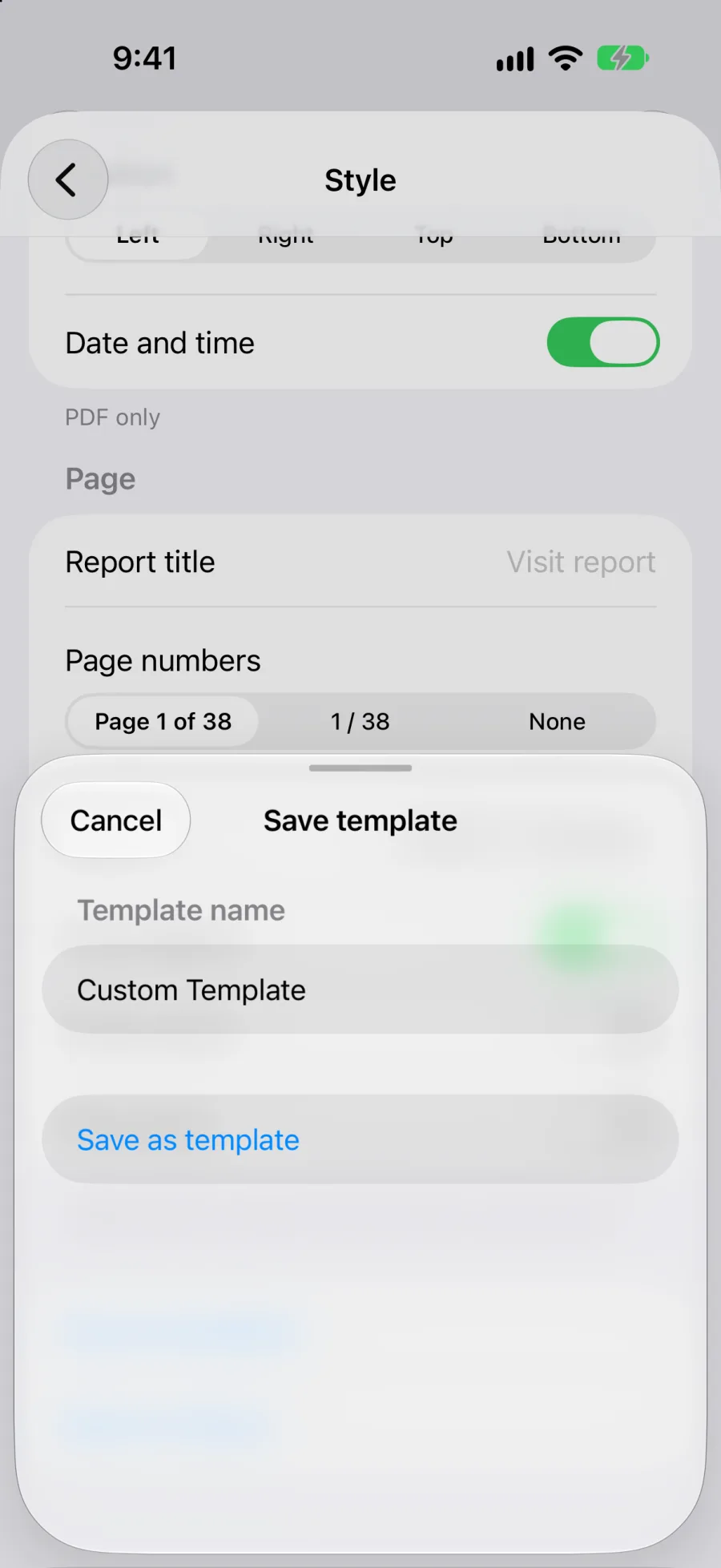
The template appears first in the Template list, on all your devices. On your next report, pick it and the report takes on the same look.
If you started from a saved template and changed it, Save as template offers to Update it (the next reports made with it use the new settings) or to Save as new template and keep both.
From a saved template’s menu:
- Rename or Duplicate it.
- Reorder your templates. They show in this order on all your devices, and a new template shows first.
- Delete it. It is removed from your account on all your devices. Reports already made do not change.
Want your own report?
Section titled “Want your own report?”If none of the templates fits, the last tile of the Template list, Custom (“Want your own report?”), opens a message to our team to ask for a report made to measure. Describe the report you need.
Questions
Section titled “Questions”Will the reports I have already sent change? No. A report shared by link stays as your client received it. To redo it with the new layout, use Recreate in My reports.
Are my previous report settings kept? Yes. They carry over, with the date under photos and the annexes off until you turn them on. A new report prints the date under photos by default.
What is free? The four templates, the four covers, the two looks, the photo and page settings and the annexes are available on every plan. Pro adds saved templates, another accent color and your client on the cover. See Plans and pricing.